Via the top menu Contacts you see all contacts of all customers in a single list, with a search field and a filter per customer. Handy when you do know a n
Path: /customers · sidebar Customers
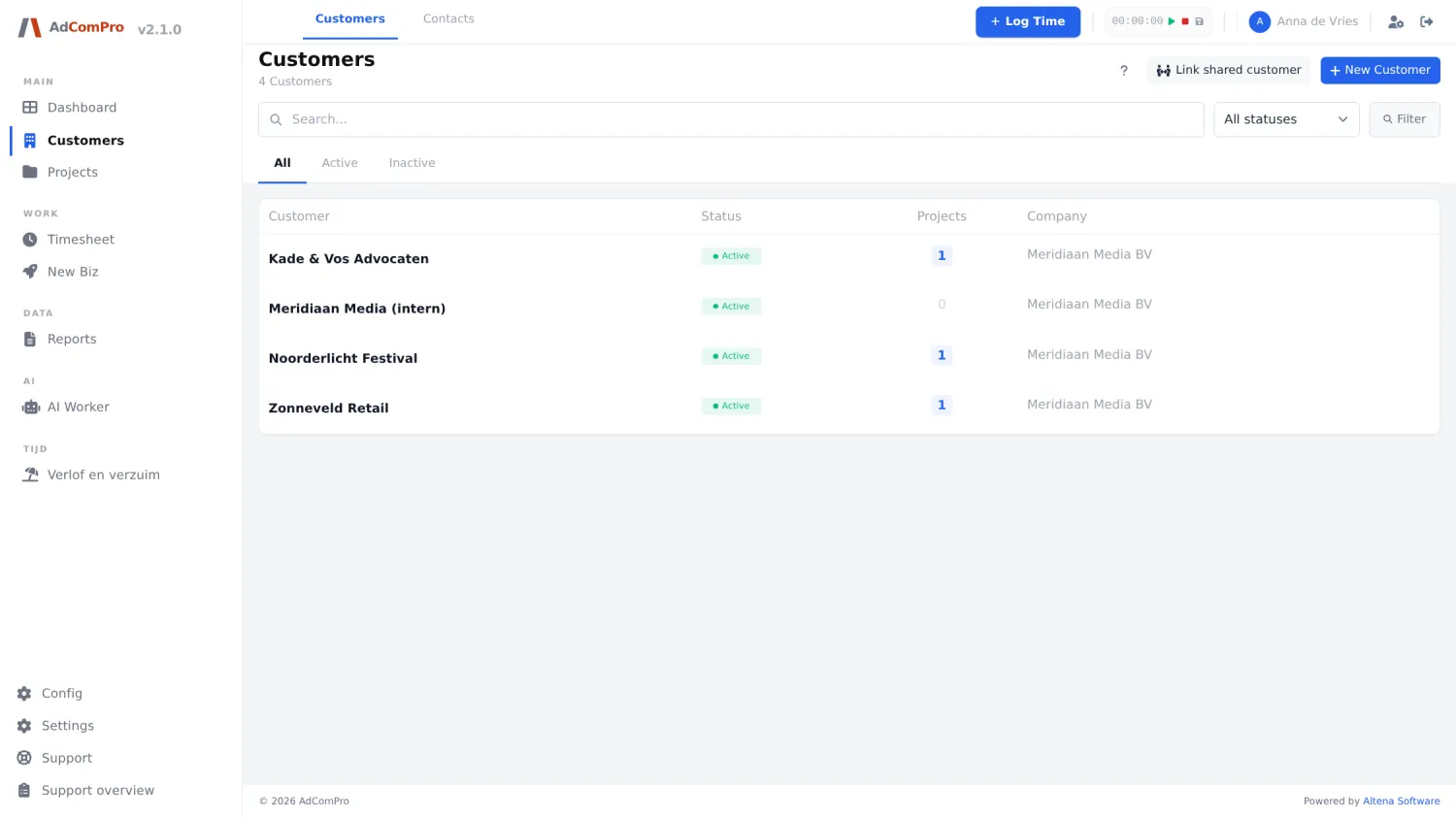
The customer list with the status filters and the per-row actions.
The list
Button or filter
What it does
+ New Customer
Opens the form for a new customer.
Link shared customer
Links a customer that another organisation shares with you, using a code they create. From that moment on you work on the same customer.
Search field + Filter
Searches by name and email; the dropdown next to it filters by status.
All / Active / Inactive
Quick filters by status.
Eye
To the customer page.
Pencil
Edits the customer in a popup, without leaving the list.
Bin
Deletes the customer. Only possible if no projects are attached to it.
?
The help for this screen.
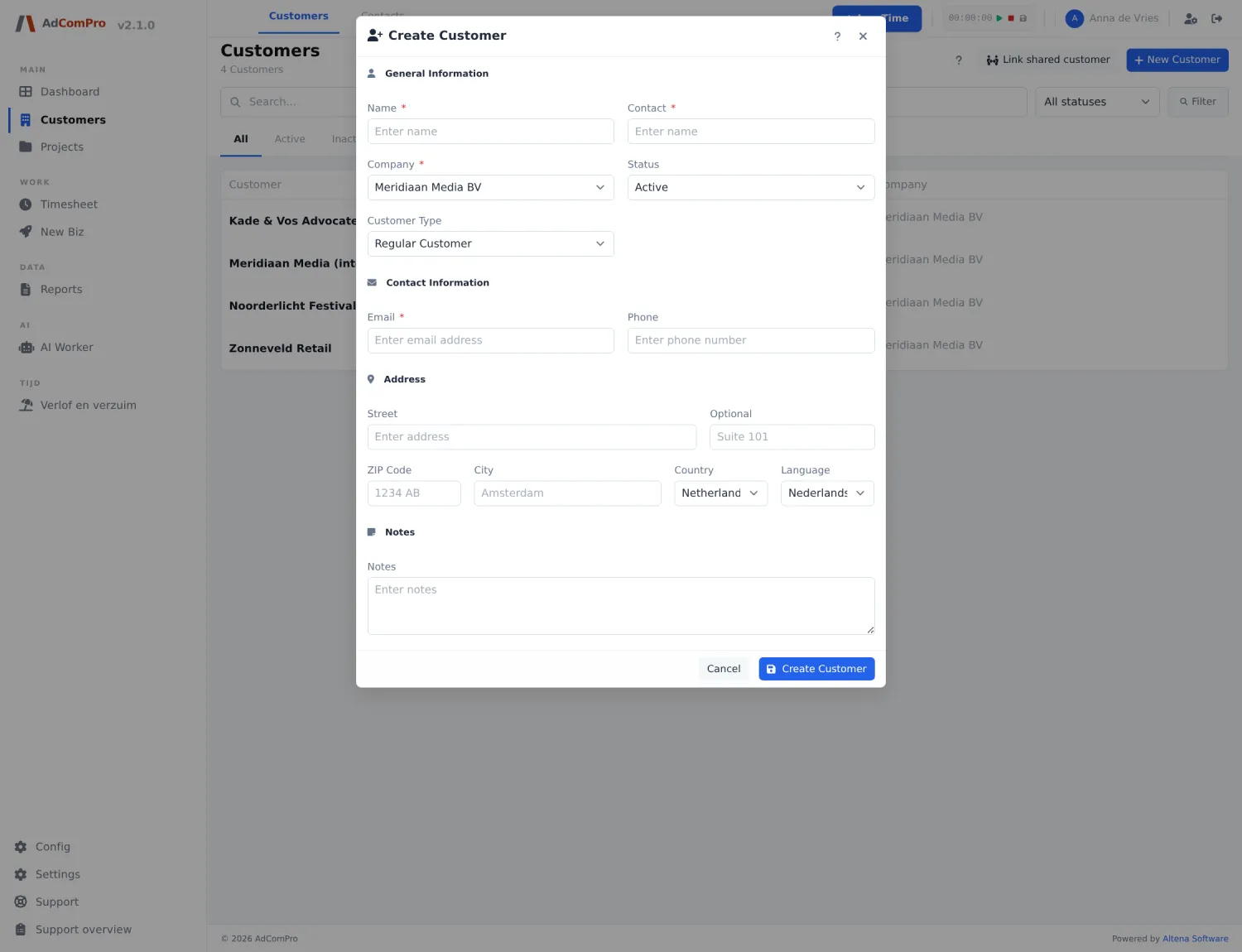
New customer: the fields
The form for a new customer.
Field
Explanation
Name
The name as it appears in lists and on reports. Required.
Type
Regular Customer or Internal. Internal means: your own organisation, not billable. Internal hours go here.
Company
The company of your organisation this customer falls under.
Status
Active or Inactive. Inactive keeps the customer out of the dropdowns, but does not affect running projects.
Contact person, Email, Phone
The main contact. You add more contacts on the customer page.
Street, Zip code, City, Country
The address, which ends up on the invoice.
Language
The customer’s language. Determines the language of customer communication, not that of your screen.
Notes
Internal notes. Never reach the customer anywhere.
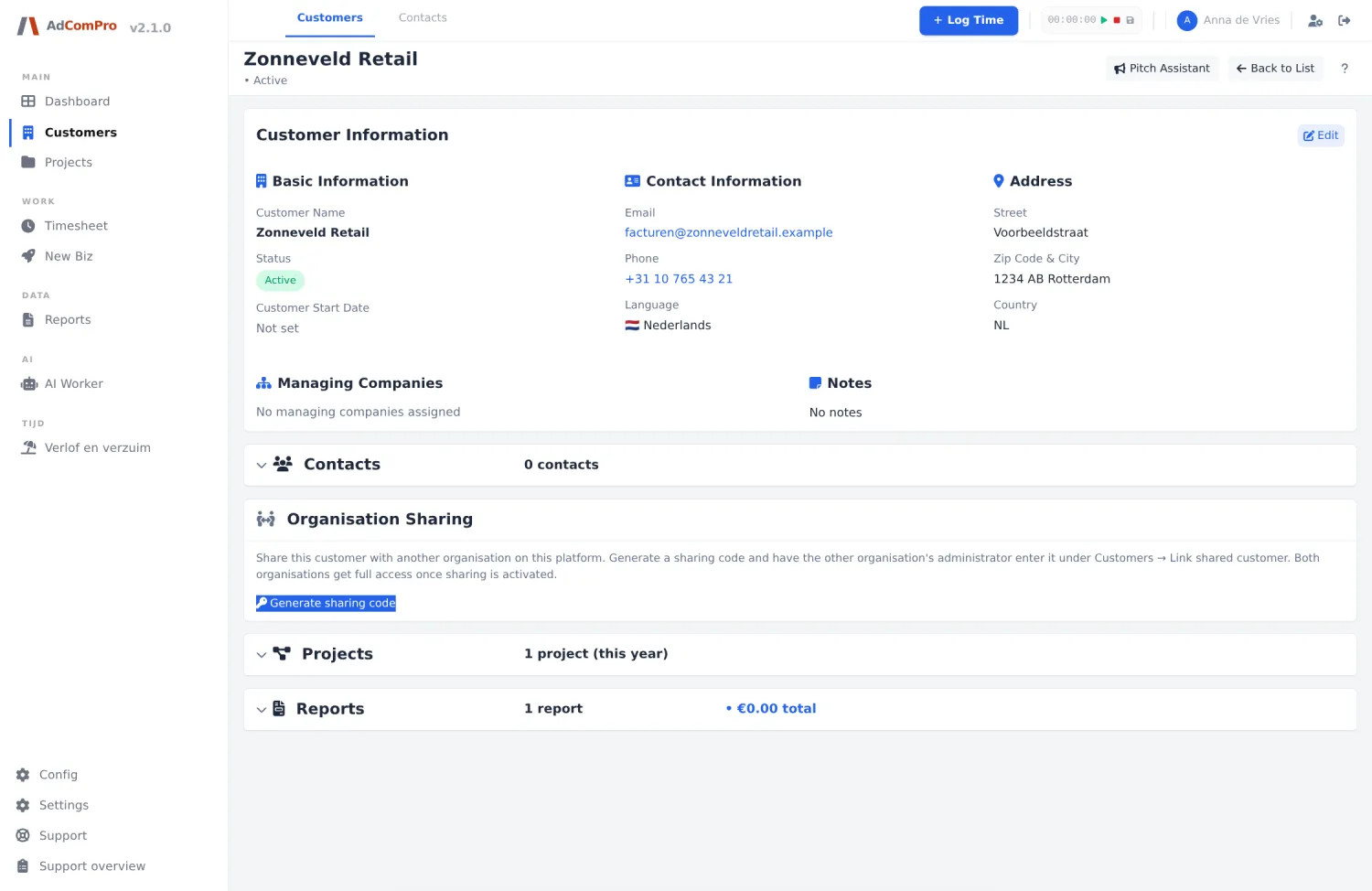
The customer page
The customer page: details, contacts, sharing and all of this customer’s projects.
Button
What it does
Edit
Turns the details on the screen into input fields. After that, Save and Cancel appear.
Back to List
Back to the customer list.
Pitch Assistant
Opens the AI pitch module for this customer, if it is enabled.
Add (under Contacts)
Adds a contact: name, role, email, phone and whether they are the main contact.
Generate sharing code
Creates a code with which another organisation can link this customer. This way two organisations work together on the same customer without seeing the rest of each other’s administration.
New Project
Starts a project with this customer already filled in.
View Project / View Report / Edit Report
Per project: to the project page, to the latest report or to its edit view.
Change Status
After ticking projects: set them in bulk to Draft, Active, On Hold or Completed.
Set Series ID
Puts the ticked projects in the same recurring series (chapter 11).
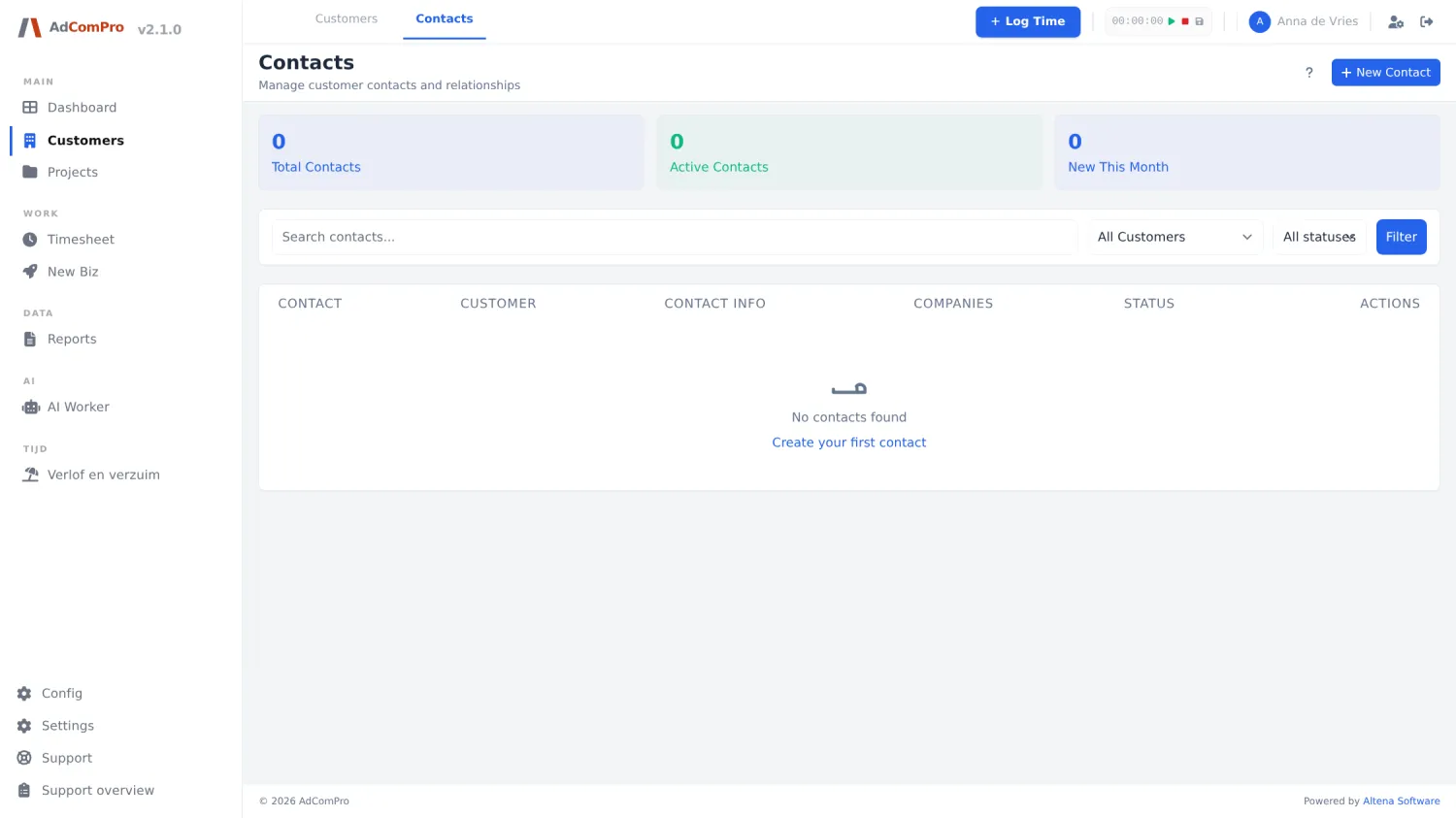
Contacts
All contacts of all customers in one place.
Via the top menu Contacts you see all contacts of all customers in a single list, with
a search field and a filter per customer. Handy when you do know a name but not the customer.