AdComPro is built out of modules: every screen and every feature is a package you switch on or off per environment. This chapter covers the Module Store in detail, and the four admin screens every administrator should know: settings, theme, notification rules and backups.
The Module Store
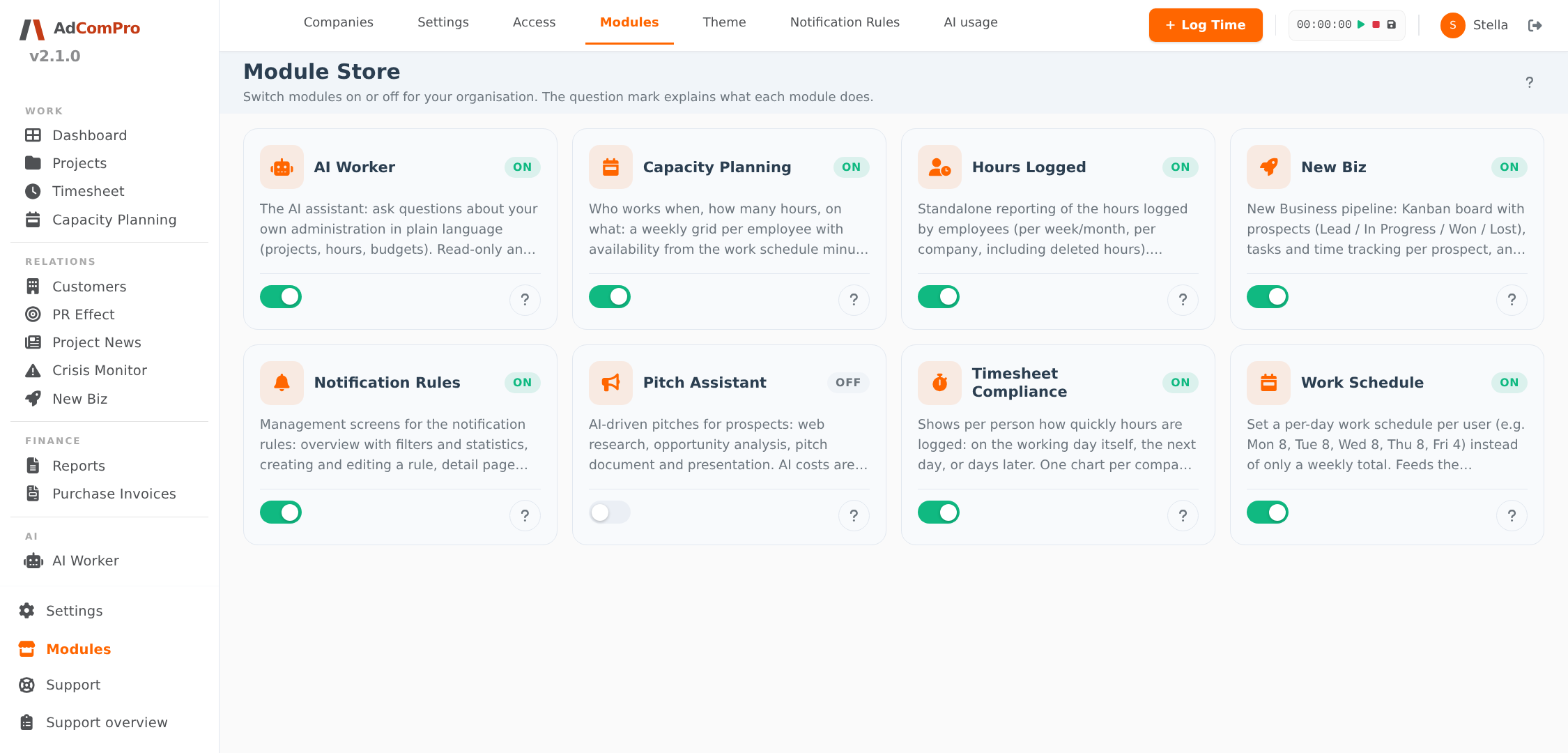
Under Modules — bottom left in the sidebar, or in the settings tabs at the top — you find the Module Store. Every module is a card with a switch and a question mark. The question mark opens the explanation: what the module does, what is included and which other modules use it — feel free to read that first, switching on still works afterwards.
- For administrators the switch applies to the whole organisation: off means off for everyone — the menu item disappears and the screens close.
- Switching off never deletes data. Everything a module has stored remains; switch it back on and it is all still there. If a colleague misses a menu item, look here first.
- Which modules appear in the store is managed centrally; not every module is released (yet).
Employees have the same store, but personally: they only see the modules released for self-service, and their switch applies to themselves only. Modules they took themselves can be handed back in, and a module they already have through their role can be hidden for themselves — permissions do not change. Below the switch you always see where the access comes from, and in access control (Access) the administrator can see per user what someone chose themselves.
Custom modules
The module system is also how custom work happens with us: a feature we build for your agency becomes its own module, enabled only in your environment. Custom work stays separate from the core and simply rides along with every update. Need something that is not there? That falls under the support times of your plan; see the pricing page.
Settings
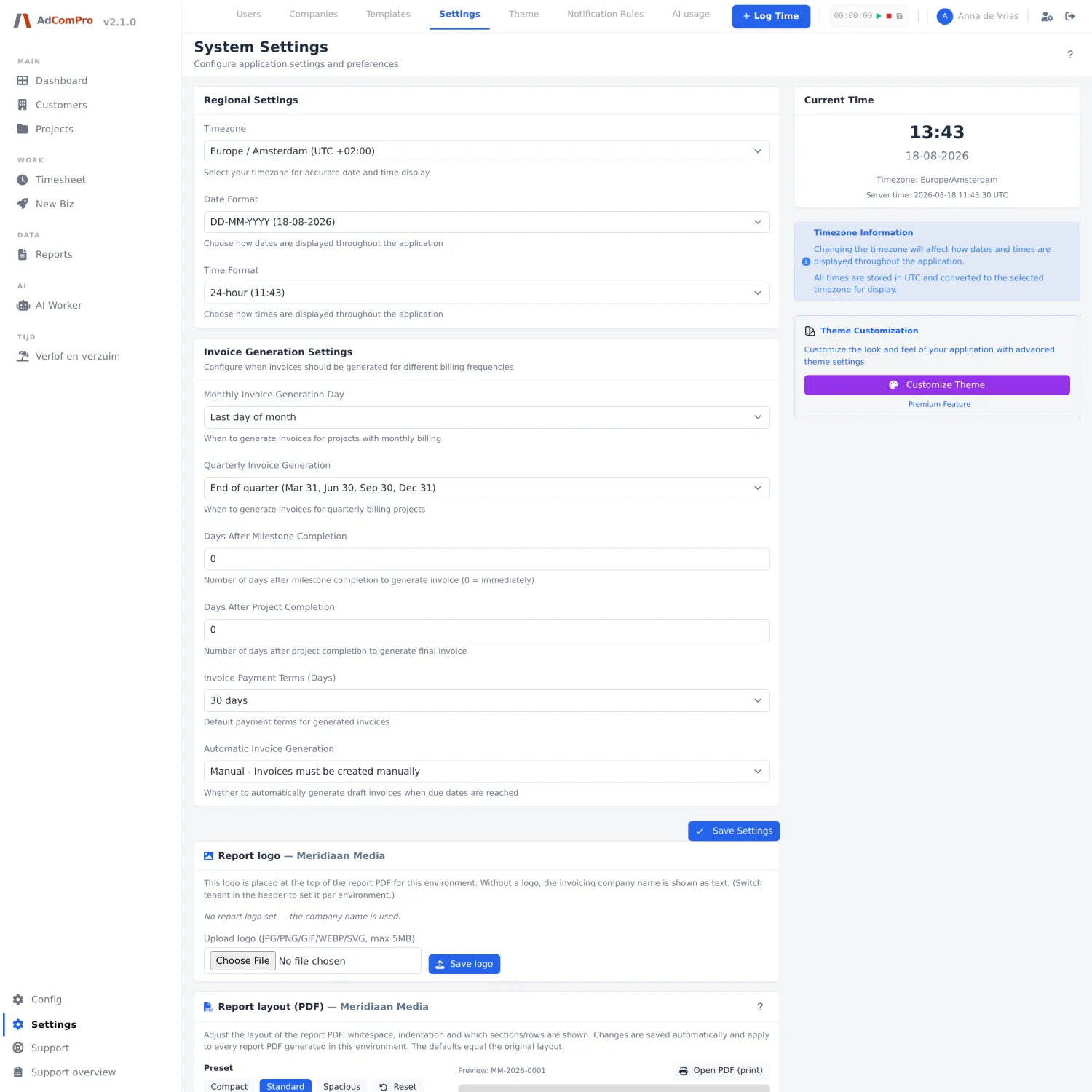
The Settings page is the configuration centre of the environment. Most settings apply to everyone and take effect right after saving.
- Regional: timezone, date format and time format.
- Invoice generation: when draft reports are prepared (day of the month, quarterly timing, days after completion) and the default payment term.
- Report logo and layout: the logo on the client PDF and the full PDF layout, with font, section order, colours and reusable presets. More on this in chapter 8.
- Security: two-factor authentication for the whole platform. Enabled, anyone logging in from a new IP address verifies with an authenticator app; a verified address stays trusted for fourteen days.
Theme
Under Theme settings an administrator sets the house style of the environment: a preset as the starting point, and within it colours, font, widths, the sidebar, the top bar, tables and statistics. Everyone in the environment sees the same theme, so screenshots and instructions match everywhere.
Notification rules
Automatic notifications, from hour reminders to budget warnings, are managed under Notification Rules. Per rule you decide the audience, the frequency, the message and the delivery (in-app, email, or both). Every rule has a send log, a preview of the recipients and a test button, so you check it before it goes live.
- Create a rule and pick the subject, for example missing hours or a budget passing a threshold.
- Decide who receives it and how often.
- Send a test message to yourself.
- Enable the rule and check the send log after a week.
Backups and version
The platform makes a full automatic backup every day. On top of that, an administrator can create, download or restore a database backup on the Backups page, for example right before a big clean-up. The Version page shows which version of the application is running, what changed per release (NEW, IMPROVED, FIXED) and which features are still in beta.