Path: /hours-logged · top menu Hours Logged
The overview of who has logged how much, per company and per period. Intended for administrators and project managers.
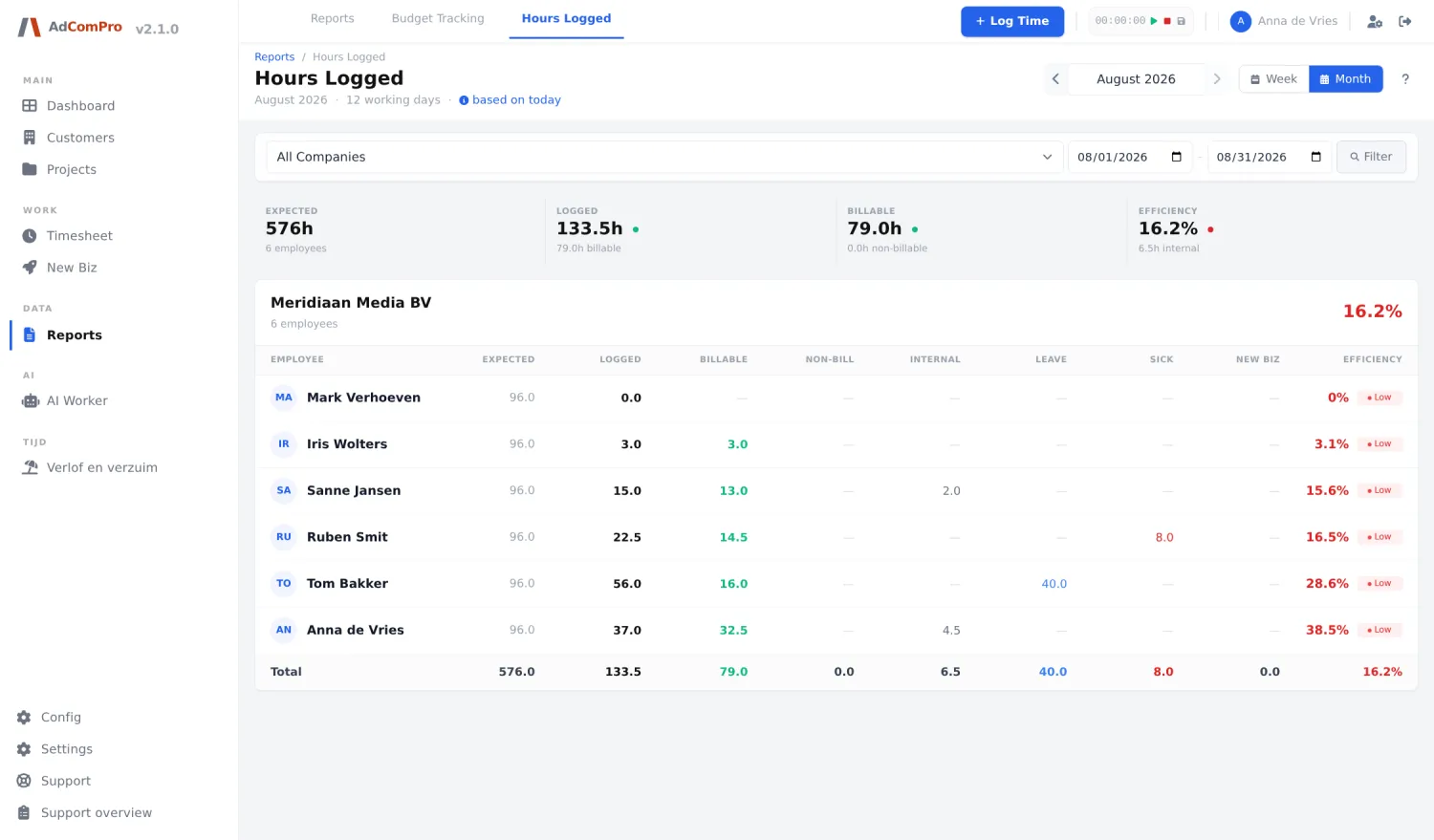
| Component | What it does |
|---|---|
| ‹ › with month name | One period back or forward. |
| Week / Month | Switches between week and month view. |
| All Companies | Filters on one company; with multiple B.V.’s each company gets its own table. |
| Date fields + Filter | Choose a custom period. |
| Expected | The number of hours expected on the basis of the working hours. “based on today” means the calculation runs up to today, not to the end of the month. |
| Logged / Billable / Non-bill / Internal / Leave / Sick / New Biz | The breakdown of the logged time. Each number is a button that shows the underlying bookings. |
| Efficiency | Billable hours relative to the expected hours, with a badge if it is below the norm. You set the norm per company (chapter 21). |
| Name of the employee | Opens the month card of that person (below). |
| Total in the Internal column | Opens the internal hours of the entire team, grouped by category, with per category the distribution across employees. That popup also contains an Excel button. |
The month card
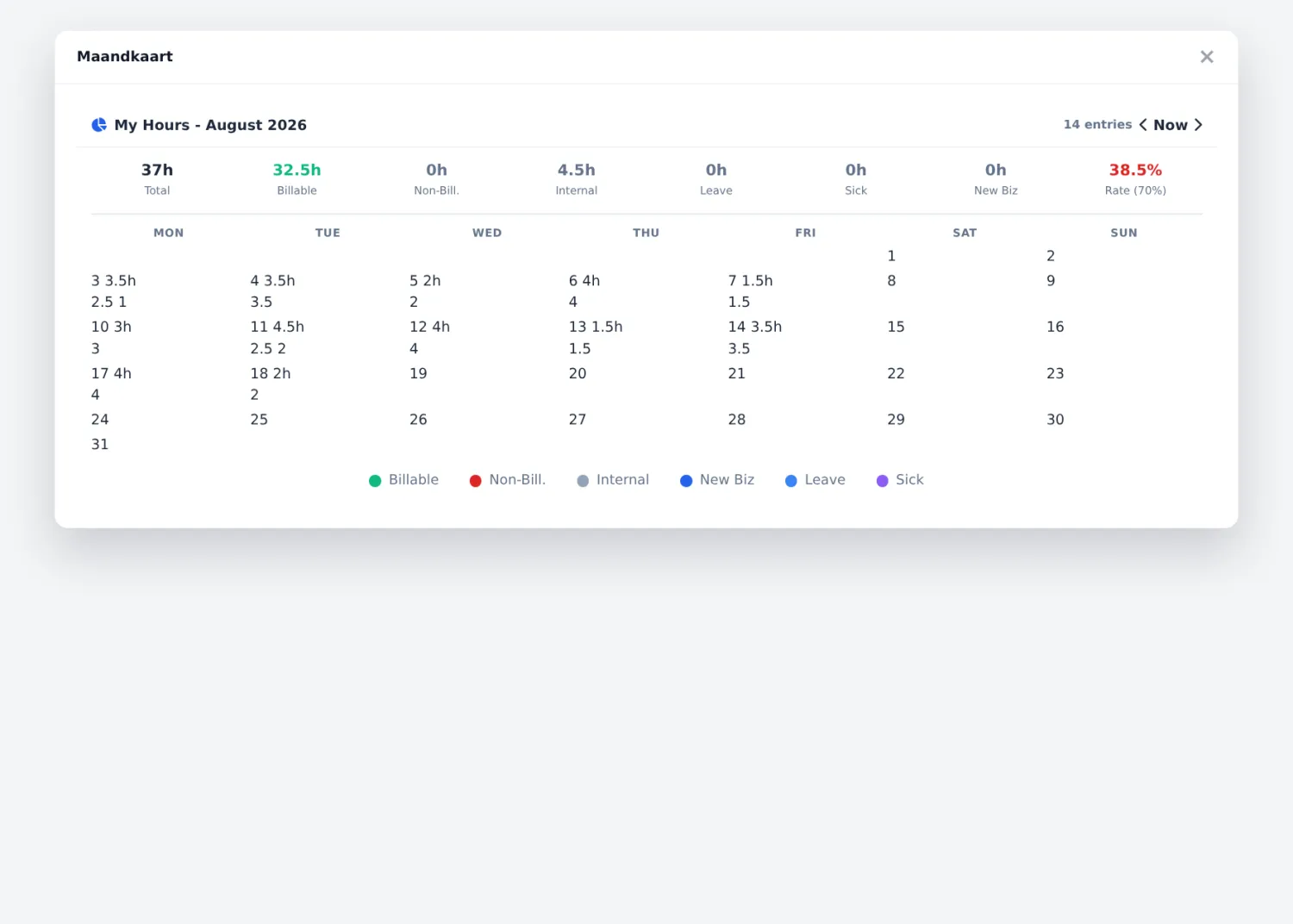
Click a name and you get the month calendar of that person, with the same counters and the same colour coding as your own dashboard. You browse through it with the arrows and click a day for the day breakdown. Useful for the question “where did those hours go again?” — or to follow up on a signal from Booking quality.
Who sees this? Administrators and project managers, and only for employees of their own company. An employee only sees their own card, via the dashboard.