Creating a ticket
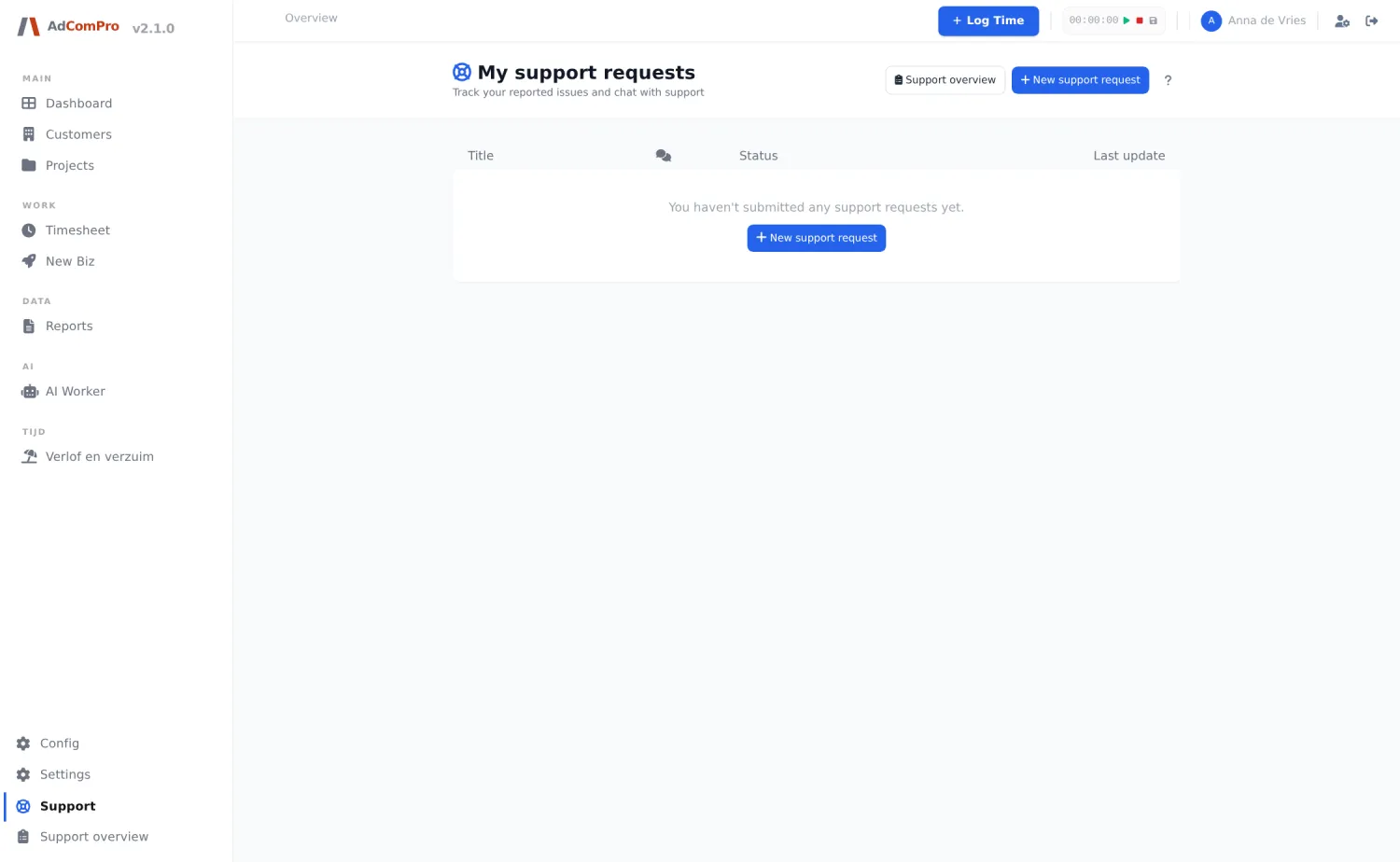
Under Support in the sidebar you find your own tickets. New support request opens the form.
| Field | Explanation |
|---|---|
| Type | Three cards to choose from, nothing is preselected: bug (something does not work), support question (you do not know how to do something) or feature request (it works, but you want it differently). |
| Urgency | From low to high. Here too, nothing is preselected, so that you choose deliberately. |
| Description | What you did, what you expected and what happened. The more concrete, the faster the answer. |
| Screenshot | Add one or more images; Remove takes them off again. |
| Technical Information | Expands to show what is sent along automatically: page, browser and version. So you never send content you cannot see. |
| Submit Bug Report | Sends the ticket. You are notified in the application and by email as soon as there is a reply. |
On your own support page you follow the conversation: replies from support are listed one below the other, with a divider and a NEW badge for what you have not seen yet. You can reply yourself and close the ticket once it is resolved. If a ticket stays silent for fourteen days after support was the last to respond, a popup asks whether it may be closed.
Support overview (for administrators)
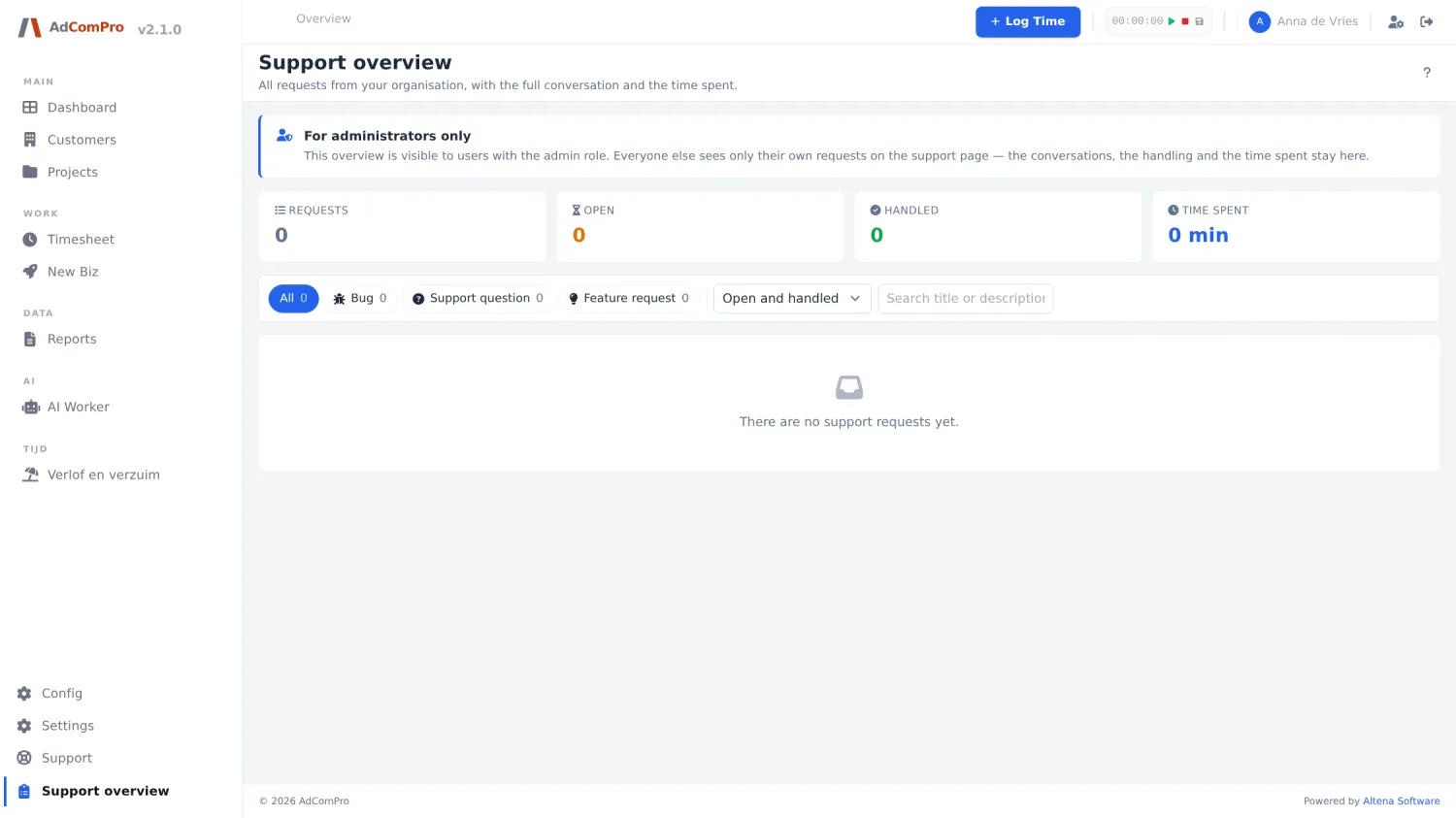
| Item | What it does |
|---|---|
| All / Bug / Support question / Feature request | Filter by type, with the count behind it. |
| Open and handled | Filter by handled or still open. |
| Search field | Searches the text of the tickets. |
| Per ticket | The question as the reporter asked it, the entire conversation, a green badge when it has been handled, and the time spent. |
| Response badge | Green or red: was there a reply within the agreed response time? You set that standard per organization (chapter 23). |