Every screen sits in the same frame: on the left the sidebar with the modules, at the top the bar with the things you need everywhere.
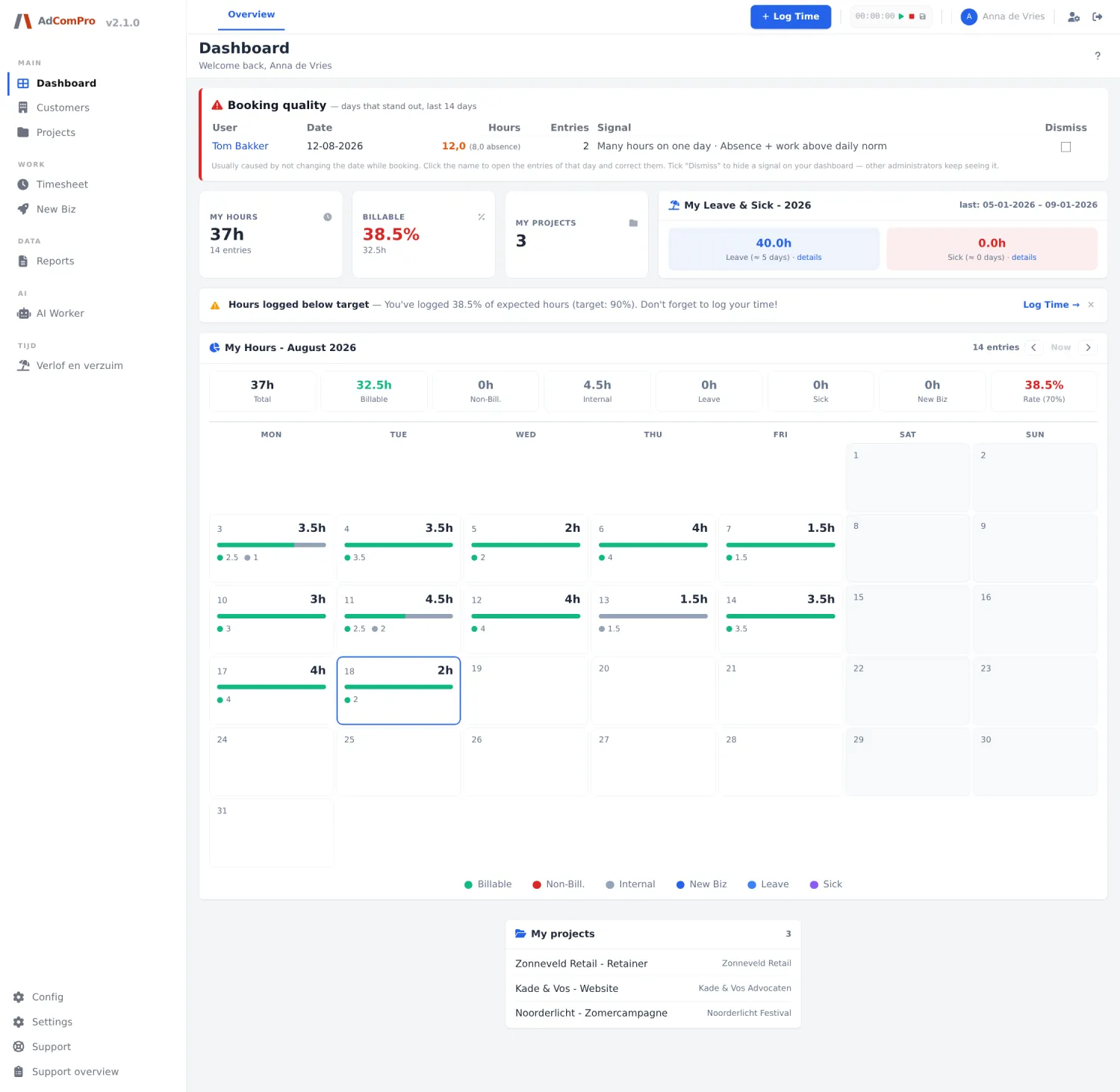
The sidebar
The sidebar is grouped under headings (Main, Work, Data, AI…). Which items you see depends on your role and on which modules are switched on.
| Item | Where it takes you |
|---|---|
| AdComPro (logo) | Back to the dashboard. |
| v2.1.0 | The version page with everything that changed in this and previous versions. |
| Dashboard | Your start screen (chapter 3). |
| Customers | The customer list (chapter 8). |
| Projects | The project list (chapter 9). |
| Timesheet | Your logged hours (chapter 5). |
| New Biz | Prospects and quotation processes (chapter 12). |
| Reports | Reports and invoicing (chapter 13). |
| AI Worker | The assistant (chapter 25). |
| Leave and absence | The leave module, if it is switched on (chapter 19). |
| Plugins | Switching modules on and off (chapter 27). |
| Config | Templates, services and invoice templates (chapter 22). |
| Settings | The organisation’s settings (chapter 23). |
| Support | Your own tickets and the submission form (chapter 26). |
| Support overview | All tickets of your organisation, for administrators (chapter 26). |
| Support inbox | The handling side of support. |
| Platform | Platform administration. |
Tip: you set the width of the sidebar and the colours under Settings › Theme. The icon at the top left of the top bar collapses and expands the sidebar.
The top bar
| Button | What it does |
|---|---|
| Overview | A drop-down menu with shortcuts to everything that does not fit in the sidebar: Customers, Contacts, Approvals (with the number of waiting hours), Upload (importing hours), Reports, Budget Tracking, Hours Logged, Users, Companies, Templates, Settings, Theme, Notification Rules and AI usage. |
| + Log Time | Opens the booking popup (chapter 4). This button is on every screen. |
| Timer | The stopwatch: ▶ starts or pauses, ■ resets to zero, and the diskette icon opens the booking popup with the elapsed time already filled in. |
| Your name | To your profile: details, password, language and working hours (chapter 24). |
| Log out | The arrow icon on the right. |
| ? | At the top right of the page header: the help for that specific screen. Almost every screen has one. |
The help inside the application itself
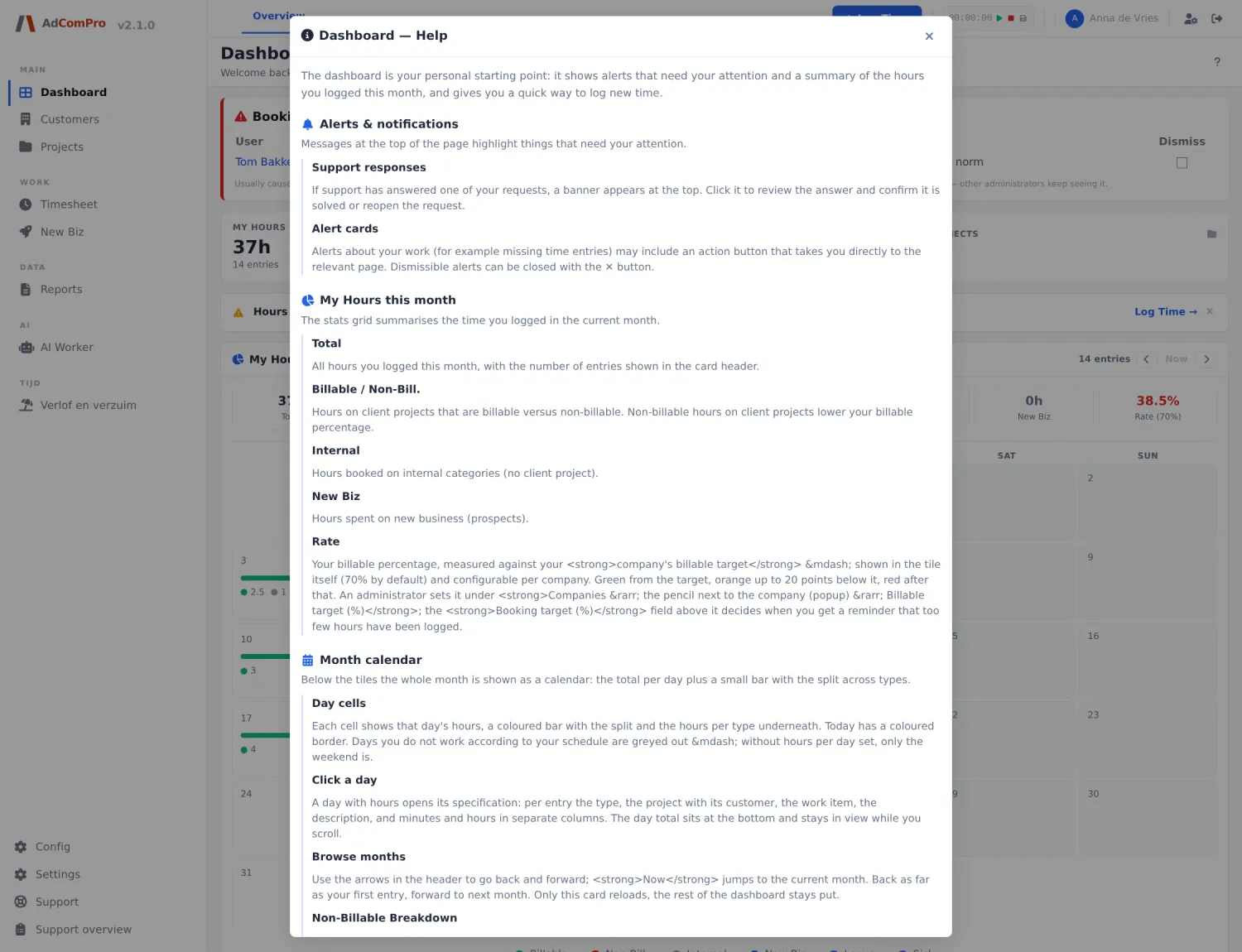
Almost every screen has a ? at the top right. Behind it is the explanation of that particular screen, in the same language as your interface. This manual describes how everything fits together; the help in the application describes the screen you are on at that moment.
Administrators with platform rights see extra icons in the top bar: an organisation picker, a button to the activity log and a terminal console. Those are covered in chapter 27.