Path: /reports · sidebar Reports
A report is the overview the customer receives and the basis for the invoice. It always starts as a draft.
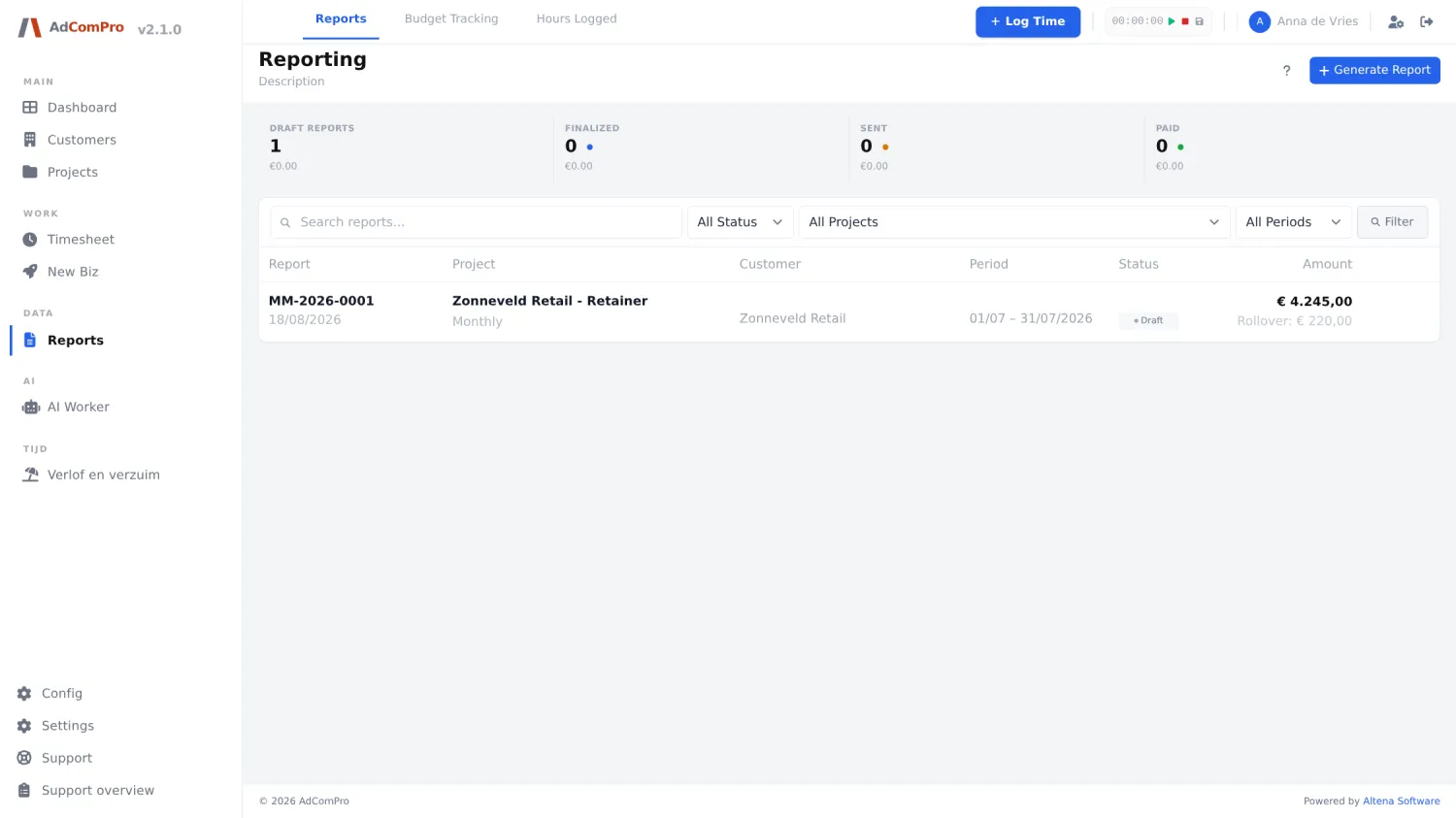
| Element | What it does |
|---|---|
| Counters at the top | Draft reports, Finalized, Sent and Paid, each with the corresponding amount. |
| + Generate Report | Creates a new draft (see below). |
| Search reports… | Searches by report number, project and customer. |
| All Status | Filter by Draft, Finalized, Sent, Paid or Overdue. |
| All Projects | Filter by project. |
| All Periods | This Month, Last Month, This Quarter or This Year. |
| Filter | Applies the filters. |
| Amount | The amount to be invoiced. For projects with a monthly budget, the balance that rolls over (Rollover) is shown underneath. |
| Eye | Opens the read view of the report. |
| Pencil | Opens the edit view (chapter 14). |
| Trash can | Deletes a draft, after confirmation. A finalised report cannot be deleted. |
Generating a report
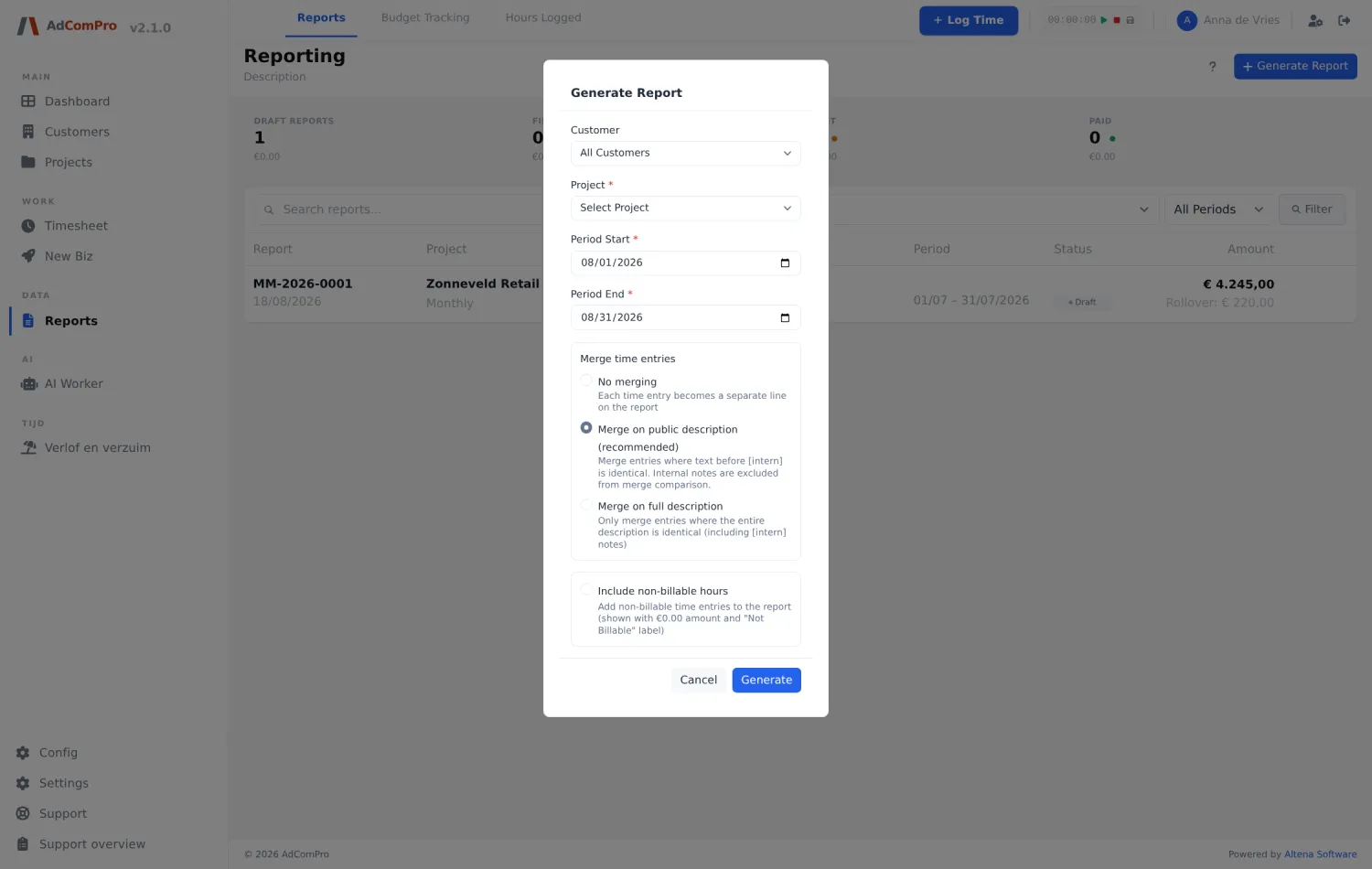
| Field | Explanation |
|---|---|
| Customer | Optional filter to shorten the project list. |
| Project | The project you are reporting on. The list only shows projects that can be invoiced (so no internal ones). |
| Period | Start and end date. For a monthly project, that is the whole month. |
| Merge | Determines whether identical descriptions are merged: merge nothing, merge on the public part of the description (before [intern]), or on the full text. |
| Include non-billable hours | Off by default. Switching it on also puts non-billable work on the report, so the customer can see what was done free of charge. |
| Generate | Creates the draft and immediately opens the edit view. |
Two rules that guard the order. Only one draft can be open at a time within a series: if an older period is still in draft, the application refuses and tells you which period must be completed first. And no gap may appear in the series: if the previous period is missing entirely, you cannot create the next one. This is deliberate — one month’s balance is the starting point of the next.
Which hours are included? All approved and not yet invoiced hours of that project — including hours from before or after the chosen period. That way, work someone logged too late is never lost. If you deliberately want to roll something over to the next month, use Defer in the edit view.