These screens belong to the administration of the application itself.
Modules (Plugins)
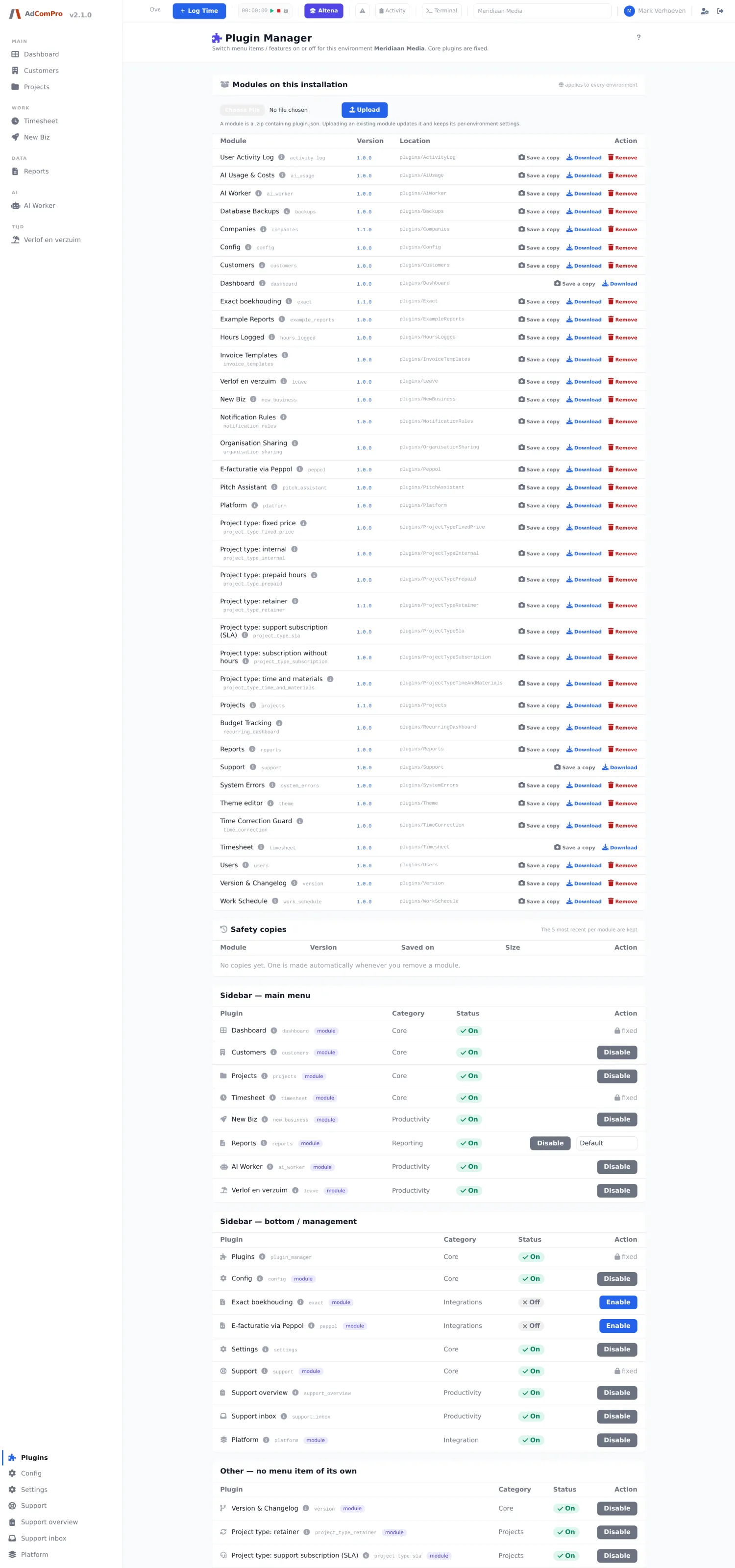
| Button | What it does |
|---|---|
| Enable / Disable | Switches a module on or off for this organization. Switching off makes the menu item disappear and closes off the screens. |
| What is this module? | Explanation per module, with what it adds and what it depends on. |
| Version number | Shows the same explanation, with the version added. |
| Save a copy | Saves a copy of the module before you change anything. |
| Download | Downloads the module as a package. |
| Remove | Removes the module from the installation. |
| Upload | Installs a module package. |
| Variant | For some modules you can choose which variant is active. |
Missing a menu item? Then the module is switched off here. That is also the explanation when a colleague at another organization has a button that you do not have.
Budget Tracking
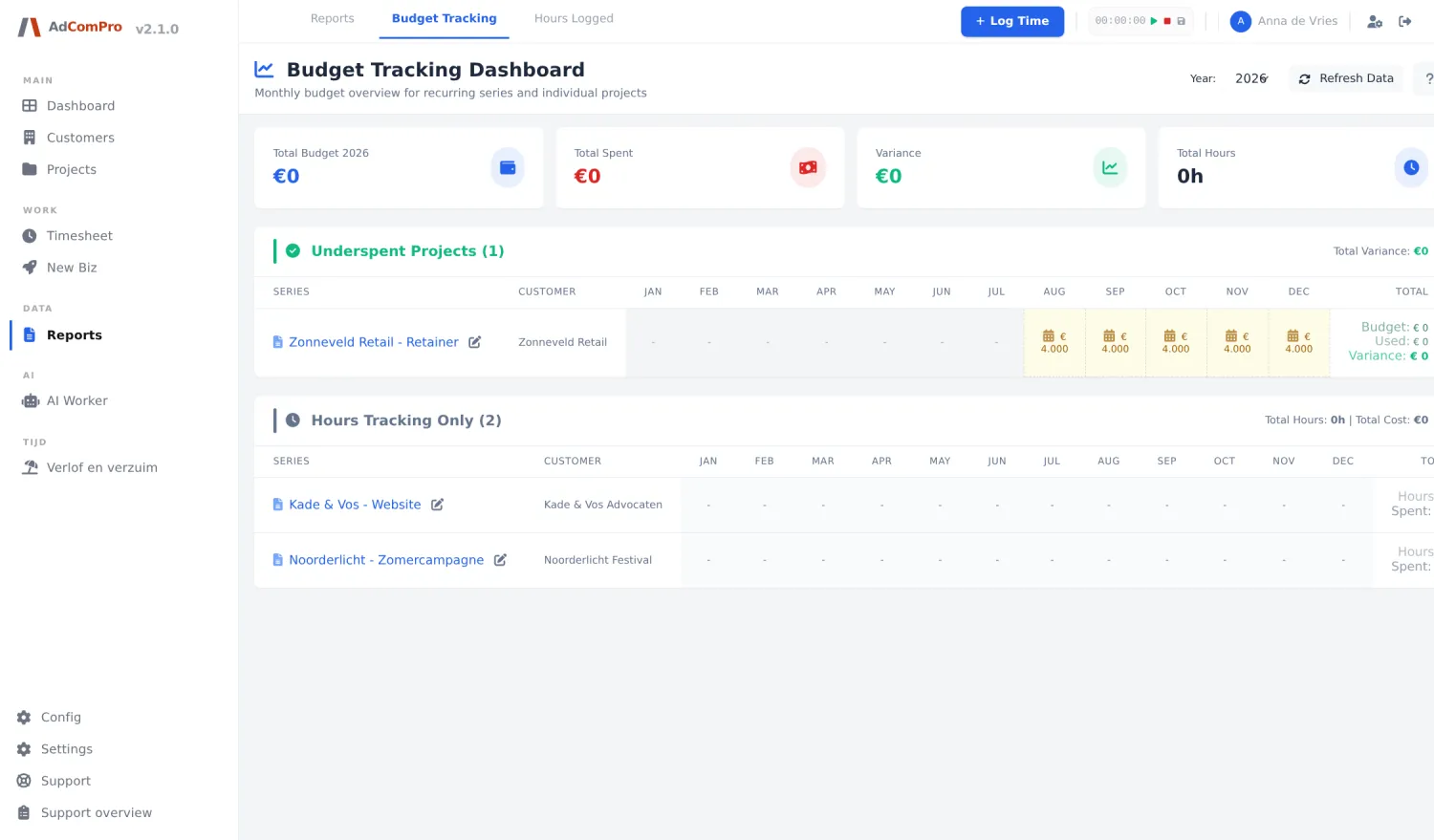
Under Budget Tracking in the top menu you find all recurring projects of a year with their budget and balance per month. The year selector at the top switches years, Refresh Data recalculates, and per project a single click takes you to the series overview. The pencil icon opens the distribution of the budget across the months.
System errors
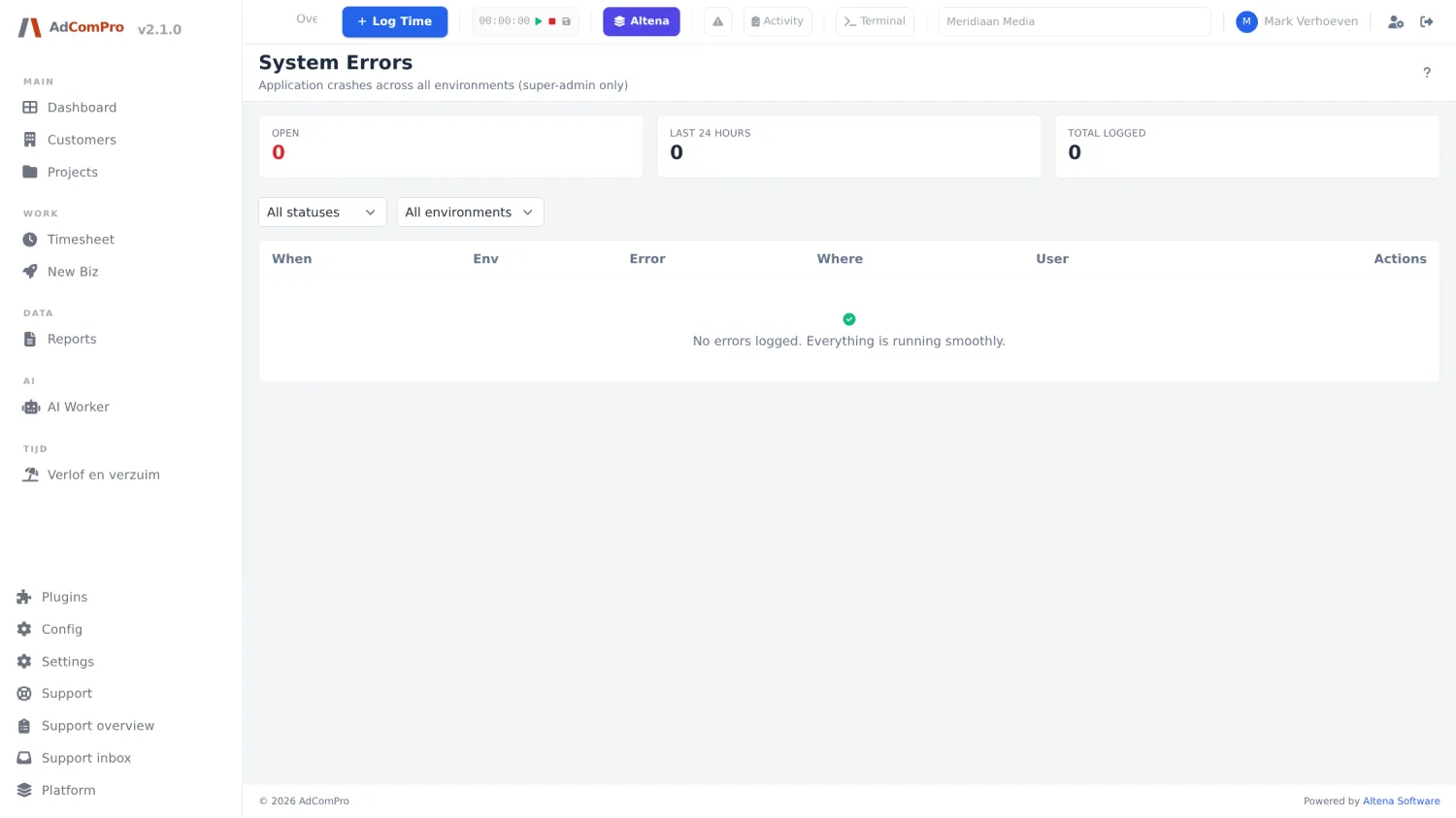
Every application error ends up here, with time, environment, error message, place in the code and the user it happened to. The filters at the top narrow down by status and environment. This screen also holds the buttons with which an automatically proposed fix can be blocked or executed right away, and the button to roll back an executed code change.
Activity log
Under /activity-log you see who logged in when and which pages were visited, with filters by user and period. A second tab shows who still logs in on the old environments. Deliberately, no image of this screen is shown here: it displays names and email addresses of real users.
Backups
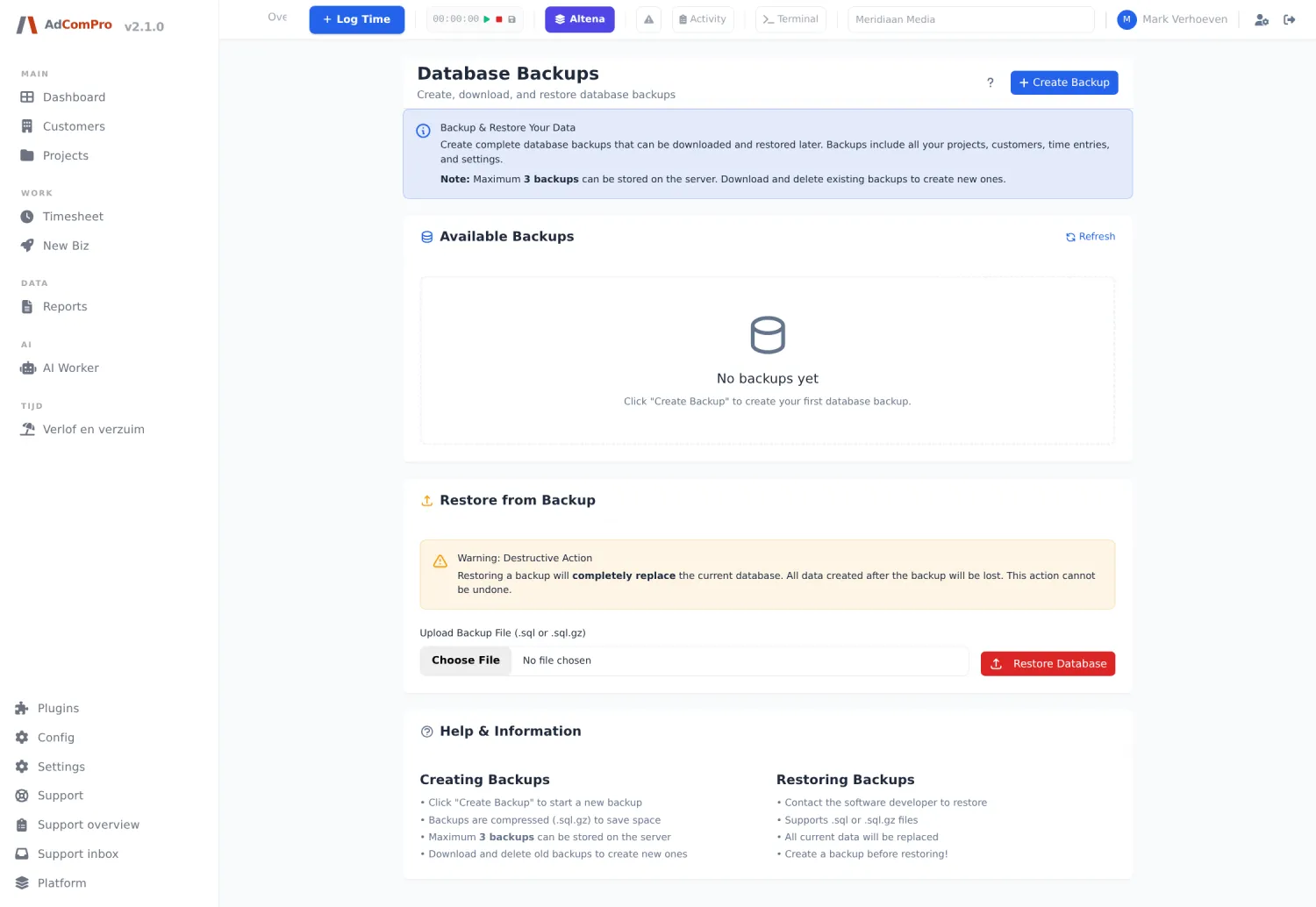
| Button | What it does |
|---|---|
| Create Backup | Creates a copy of the database now. |
| Refresh | Refreshes the list of existing backups. |
| Restore Database | Restores a backup. This overwrites the current data — only do this when you are sure what you are restoring. |
Version
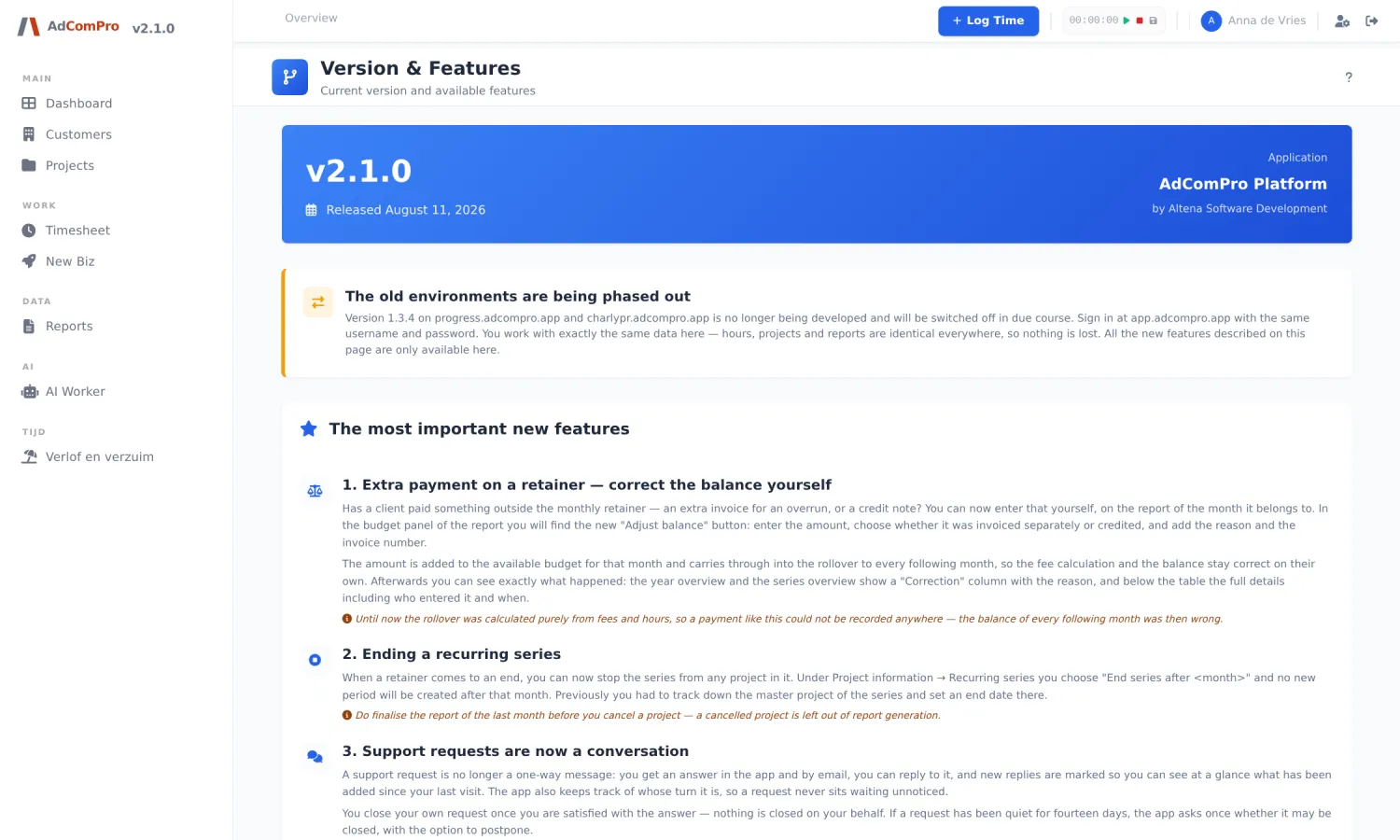
The version number in the sidebar opens this page: what is new, what has been improved and the history of earlier versions. After a new version, this page is shown to you automatically the next time you log in.
The platform console
Platform administrators have three extra buttons in the top bar: an organization selector (to look into another organization), a shortcut to the activity log and a terminal console. At the bottom of the sidebar sits the entrance to the platform console with the screens for administration across organizations. Those fall outside this manual.
Access — roles and permissions
Under Access in the top menu you find user management, the permission matrix, custom roles and the extra access per user, all in one place. Chapter 20 describes this screen; appendix 28 shows the default rights the matrix starts from.