The project page is the complete file of a single engagement: what was agreed, what has been spent on it, what has been invoiced and what still needs doing. This chapter covers the structure of a project, the team and its permissions, the rates and the additional costs.
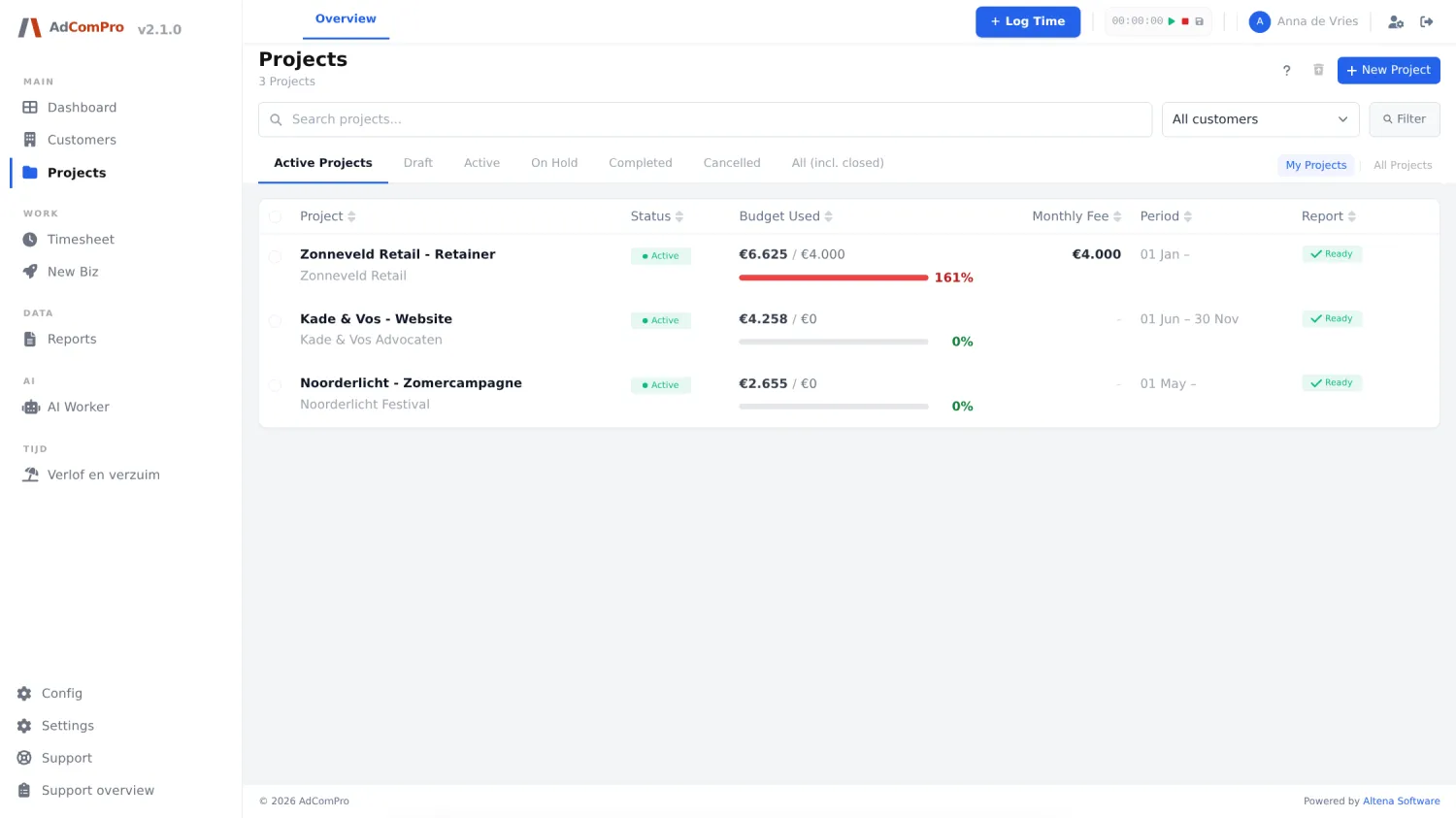
Creating a project
- Click New Project in the project list.
- Choose the customer, give the project a name and a duration.
- Pick the project type. It decides which fields appear: a retainer asks for a monthly amount and a period, a fixed price for a contract sum, prepaid hours for a first bundle. If only one type is enabled in your environment, there is no selector. See chapter 4.
- Optionally pick a project template: the milestones and tasks are in place right away.
- Save and complete the project on the detail page.
Structure: milestones and tasks
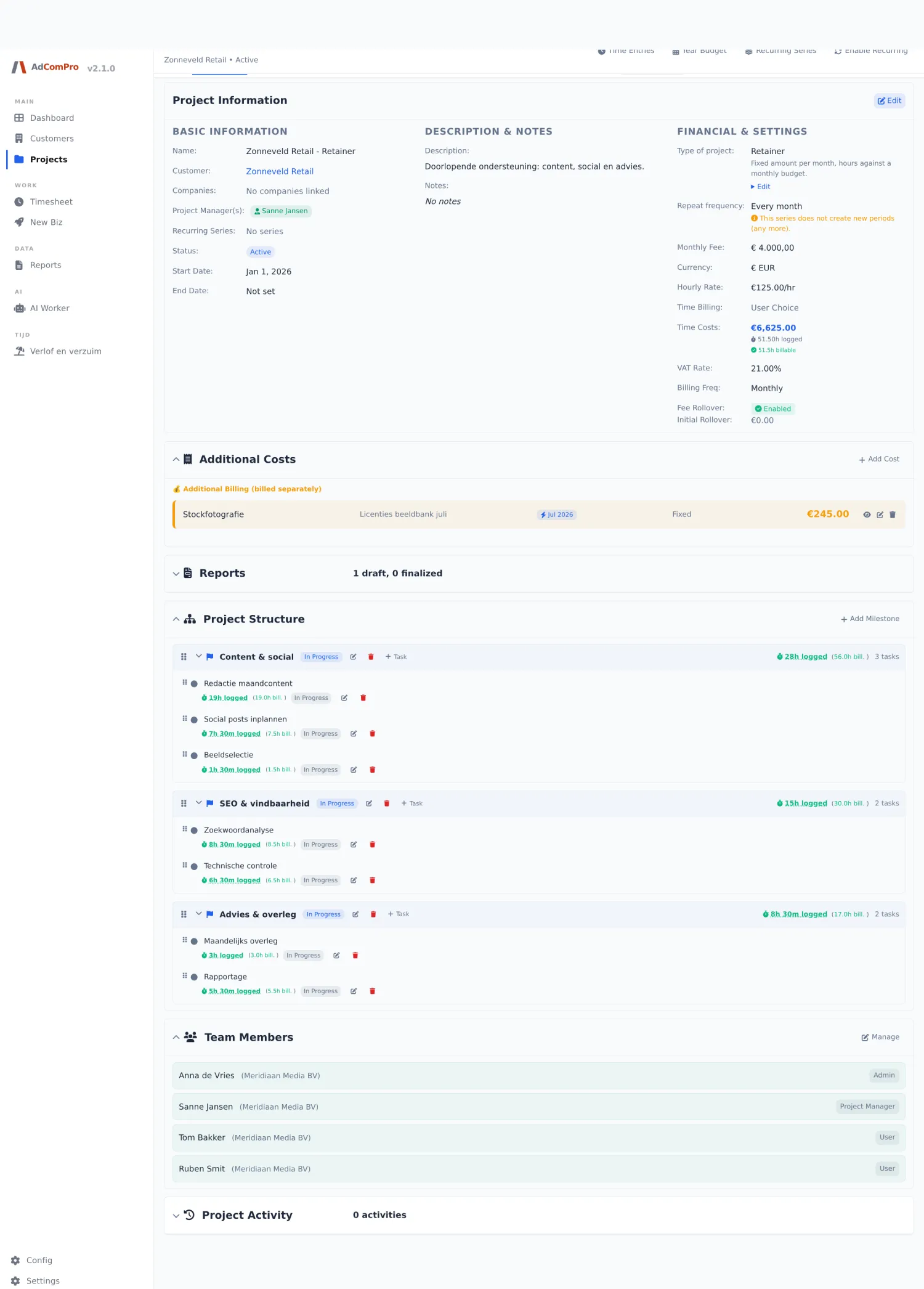
A project is divided into milestones, and tasks hang under each milestone. Hours are always booked on a task, never on the project as a whole. That is what makes the report readable later: the client sees the work grouped exactly as you laid it out here.
- Order: drag a milestone or task by its handle. The order here is the order on the report.
- Renaming: click a name and type. Nothing is saved until you confirm.
- Hours per task: the clock icon on a task shows which hours were booked on it, by whom and when.
- At least one task: a project without at least one milestone holding a task cannot be booked on.
Rates: four levels, and which one wins
An hourly rate can be set on four levels. The most specific level always wins:
| Level | Where you set it | When it applies |
|---|---|---|
| 1. Task | The task’s edit window | For hours on exactly that task |
| 2. Milestone | The milestone’s edit window | When the task has no rate of its own |
| 3. Project | The Hourly rate field in the details block | When milestone and task say nothing |
| 4. Company | The company’s default rate | The safety net when everything is empty |
Besides the rate, you choose per milestone or task how it is billed: within the fee (comes out of the monthly budget) or additional (billed on top), and fixed amount or per hour.
The one thing to remember: the rate is stamped onto the time entry at the moment of booking and never changes afterwards. Adjust a rate later and the hours already booked keep the old price; only new bookings use the new one. That is deliberate: a month you have already reported on cannot change value afterwards. So check rates before the team starts booking.
Team and permissions
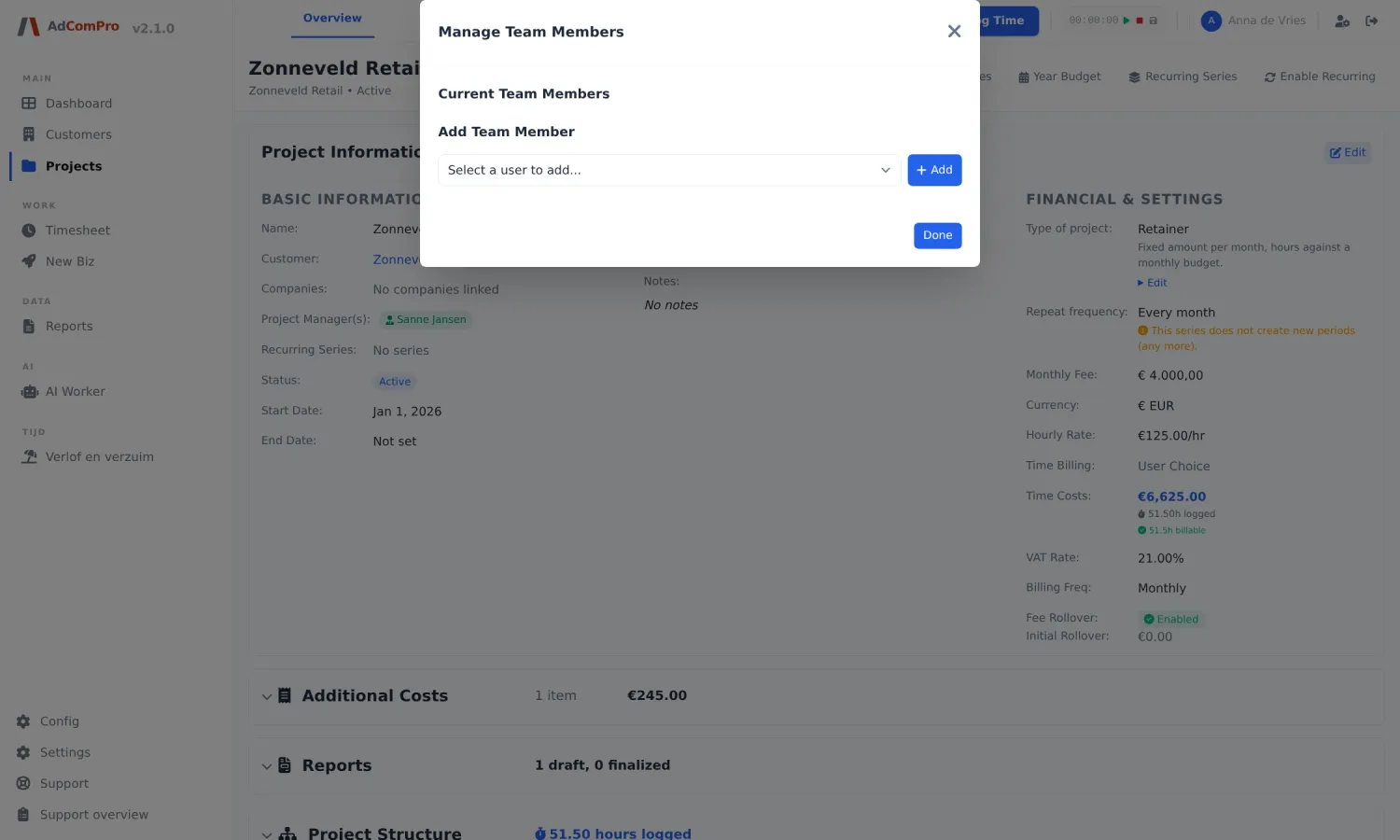
The team block decides who may do what on this project, independent of someone’s role in the rest of the environment. That lets you give a colleague access to one project without opening up everything else. Per team member you set:
- Log hours: may book on this project’s tasks
- Approve hours: may review other people’s bookings
- See financials: sees amounts and budget; someone who may only book sees the project and its tasks, but no money
- Edit fee: may change the financial agreements
Colleagues from another company inside your environment can be added too. Everyone books on the same tasks, at the rate that belongs to the task: the rate follows the work, not the person booking. The project managers sit in a separate field in the details block; that is the point of contact and grants no extra permissions by itself.
Additional costs
Everything that is not hours (a photographer, print work, a licence, travel costs) goes under Additional costs. The split decides who pays:
- Within budget: the amount comes out of the monthly fee, exactly like hours do. The client sees no separate line.
- Billed additionally: the amount appears as its own line on the report, on top of the fee, and leaves the budget alone.
- One-off or monthly: a one-off cost counts in the month it falls in; a monthly one returns automatically every month while active, handy for a running licence.
- Amount or hours × rate: both work, and the calculation stays visible in the list.
Add costs before you finalise that month’s report; after that, the amounts of the period are locked.
Project templates
Under Config you manage reusable project structures: milestones and tasks with estimated hours, rates and duration. When creating a project you pick a template and the structure is in place immediately. Build a template for every kind of engagement you do more than once; it saves time, and it also makes your reports consistent between clients.