Invoicing in AdComPro runs through the Activity Report: a detailed specification of one period’s hours and costs, grouped by milestone and task. You review it, adjust where needed, and once it is final, that is the invoice. A report passes through four stages: draft → finalised → sent → paid.
Before you generate
Generating takes a snapshot of the project settings. Changing settings afterwards does not update the report. So check first: the hourly rate, the monthly amount, whether rollover is on, the initial rollover for a first month, and whether the project hangs on the right series. If a draft report is wrong, delete it, correct the project and generate again. And approve the period’s hours: only approved entries make it into the report.
Generating
- Click Generate Report, filter by customer and pick the project.
- Check the period; it is proposed from the project’s billing frequency.
- Choose whether identical lines are merged (recommended: “2.0h bug fixing” and “1.5h bug fixing” become “3.5h bug fixing”) and whether non-billable hours are included; they appear at € 0.00 and leave the budget alone.
With automatic generation on (see Settings), draft reports are ready as soon as their date arrives. Within a series a fixed order applies: you cannot create a new report while a draft is still open, and the previous month must exist; otherwise the rolled-over balances would stop adding up.
Reviewing in the spreadsheet editor
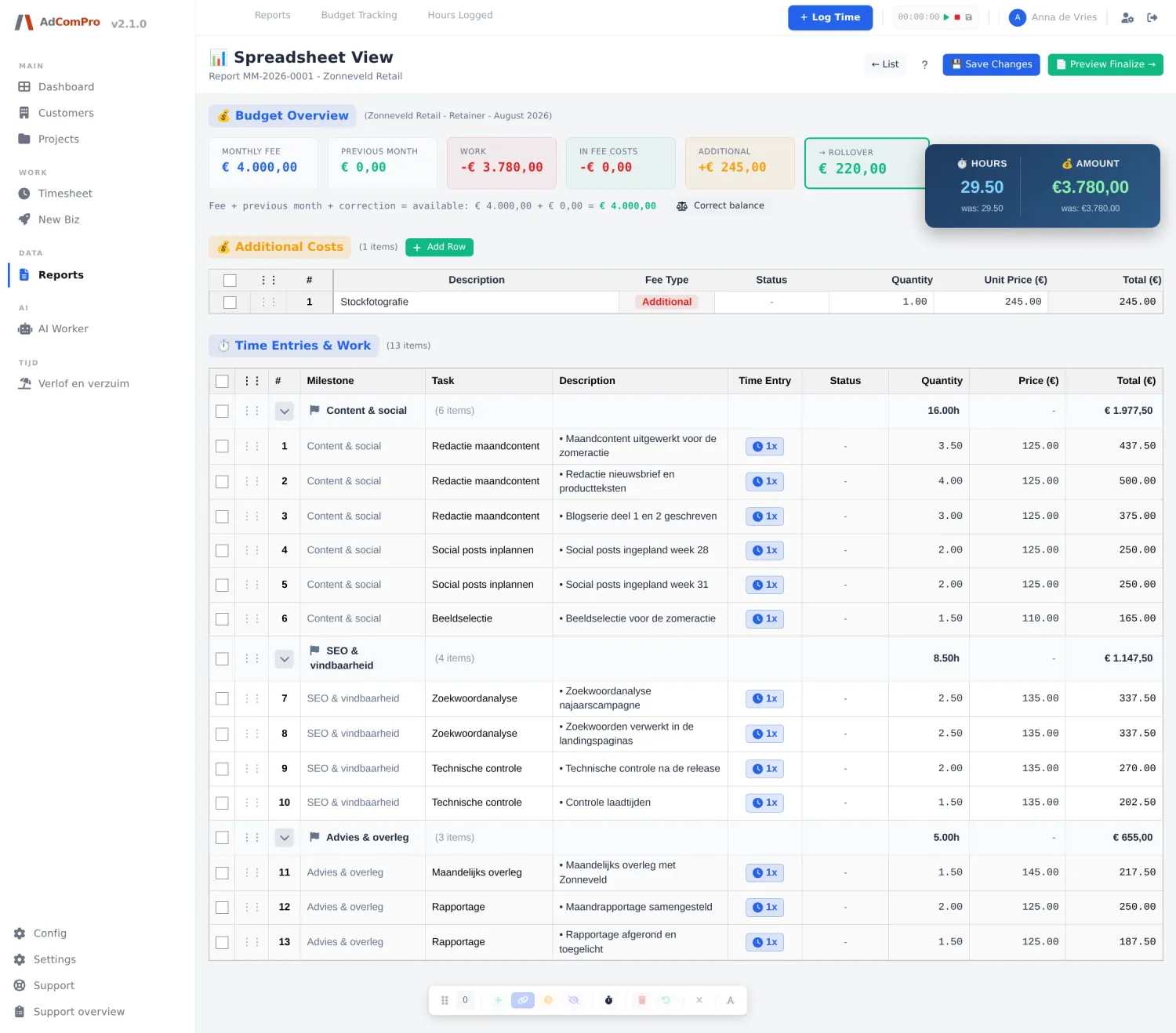
You edit a draft in an Excel-like editor:
- Editing cells: click a white cell for description, hours or rate; grey cells are calculated. Totals update immediately.
- Reordering: drag rows by the row number; the order is remembered for future reports.
- Merging: select rows and click Merge Rows.
- Deferring: work you do not want to invoice yet is pushed to the next period; it turns yellow, drops out of this report and returns on the next one. Deferred lines never appear on the client PDF.
- Adding costs: straight into the spreadsheet; within the fee or on top.
- Undo: up to fifty steps with Ctrl+Z, even after saving. Every change lands in the edit log at the bottom: who, when, old and new value.
Finalising and sending
Finalising is final. It locks the hours and marks them as invoiced, calculates and freezes the rollover balance, moves deferred lines to the next period and updates the budget tracking. So look at Preview Finalize first, check the rollover amount and that every cost is in, and only then click Finalize. After that: send the PDF, mark as Sent, and after payment as Paid. A finalised report can no longer be edited or deleted.
Shaping the client PDF
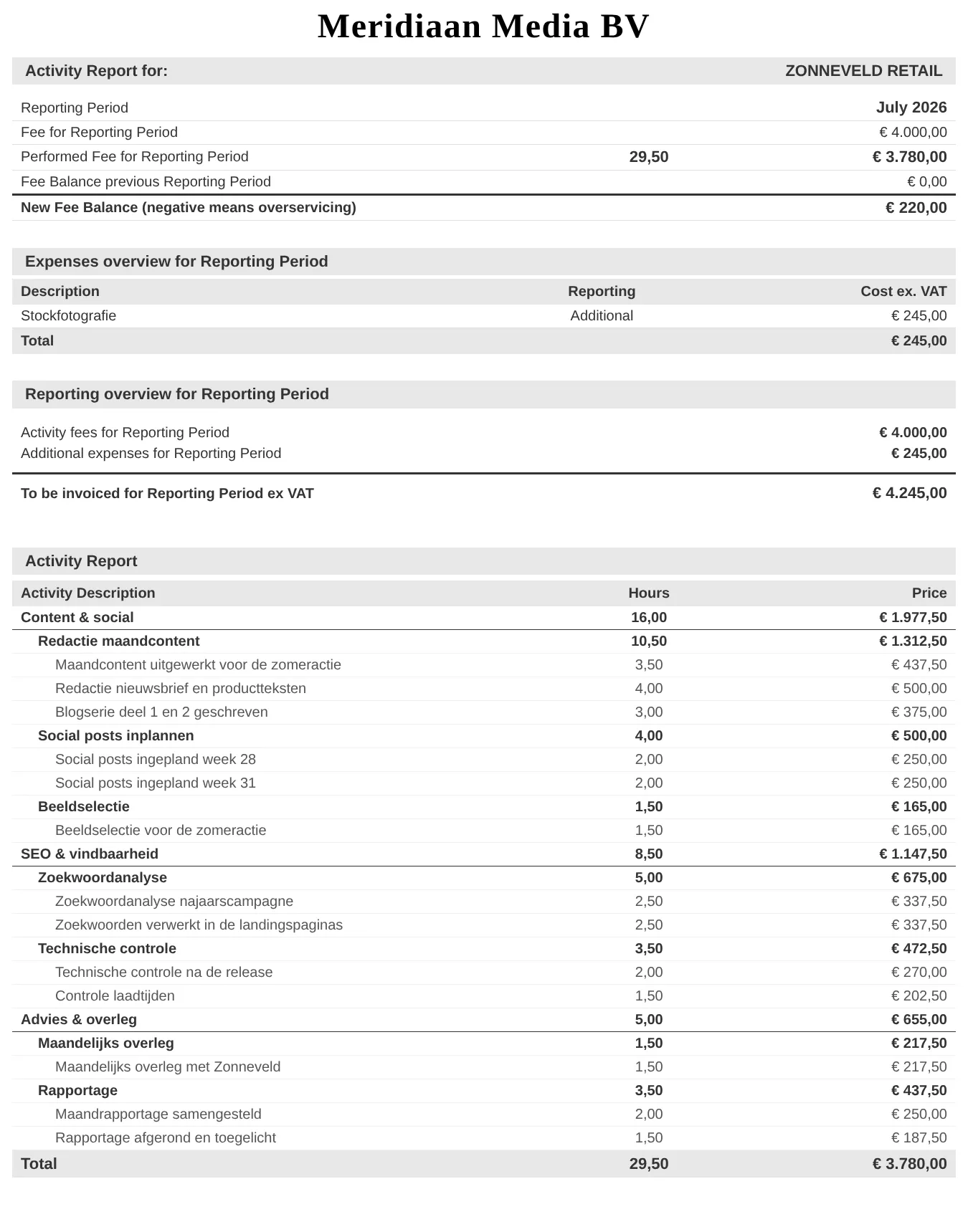
The layout of the report PDF is set per environment: font, whitespace, section order, colours, columns and show/hide choices, with a live preview. Configurations can be saved as a preset (up to twenty), and when downloading or finalising you pick per report which preset applies; different clients can get different layouts without touching your default. One fixed rule: the amounts always stay right-aligned in a single column. On top of that there are the invoice templates with a visual builder (drag blocks, colours, logo, font) for the invoice styling itself.
Accounting: Exact
With the Exact module, a finalised invoice becomes a sales entry in the bookkeeping at the press of a button, and payments arriving there set the invoice to paid here. Nobody enters the same invoice twice, and the debtor position matches on both sides. The setup, in this order:
- Connection: with Exact Online you connect the environment to your Exact account once; the login stays valid for thirty days without use. Globe and Compact have no internet link and work with files.
- Administrations: per company you pick the division, the sales journal, the ledger accounts and the VAT codes. Nothing is guessed here.
- Linking customers: look up the debtor each customer already has in Exact and confirm yourself. Deliberately manual: a mismatched debtor is hard to untangle.
- Invoices: check the preview (exactly which amounts on which account) and send.
Nothing ever leaves by itself, an invoice that does not add up is refused rather than corrected, and before every attempt the module asks Exact whether the invoice number already exists, so nothing is ever booked twice. With Globe and Compact you download an XML import file and read it in via XML → Financial import; you upload the outstanding items back to process payments.
E-invoicing via Peppol
The Peppol module turns a sales invoice into a genuine e-invoice: a structured file following Peppol BIS Billing 3.0 (the European standard EN 16931) that your client’s bookkeeping reads in directly. In Belgium this is already mandatory between businesses; across the rest of Europe the requirement is on its way. The module starts with a readiness check showing per company and per customer which details are still missing (VAT number, address, company registration), validates every invoice against the network’s official rules, and delivers the valid file to submit yourself or through your accountant.