The + Log Time button in the top bar works on every screen and always opens the same popup. At the top you choose where the time goes: Project, New Business or Internal.
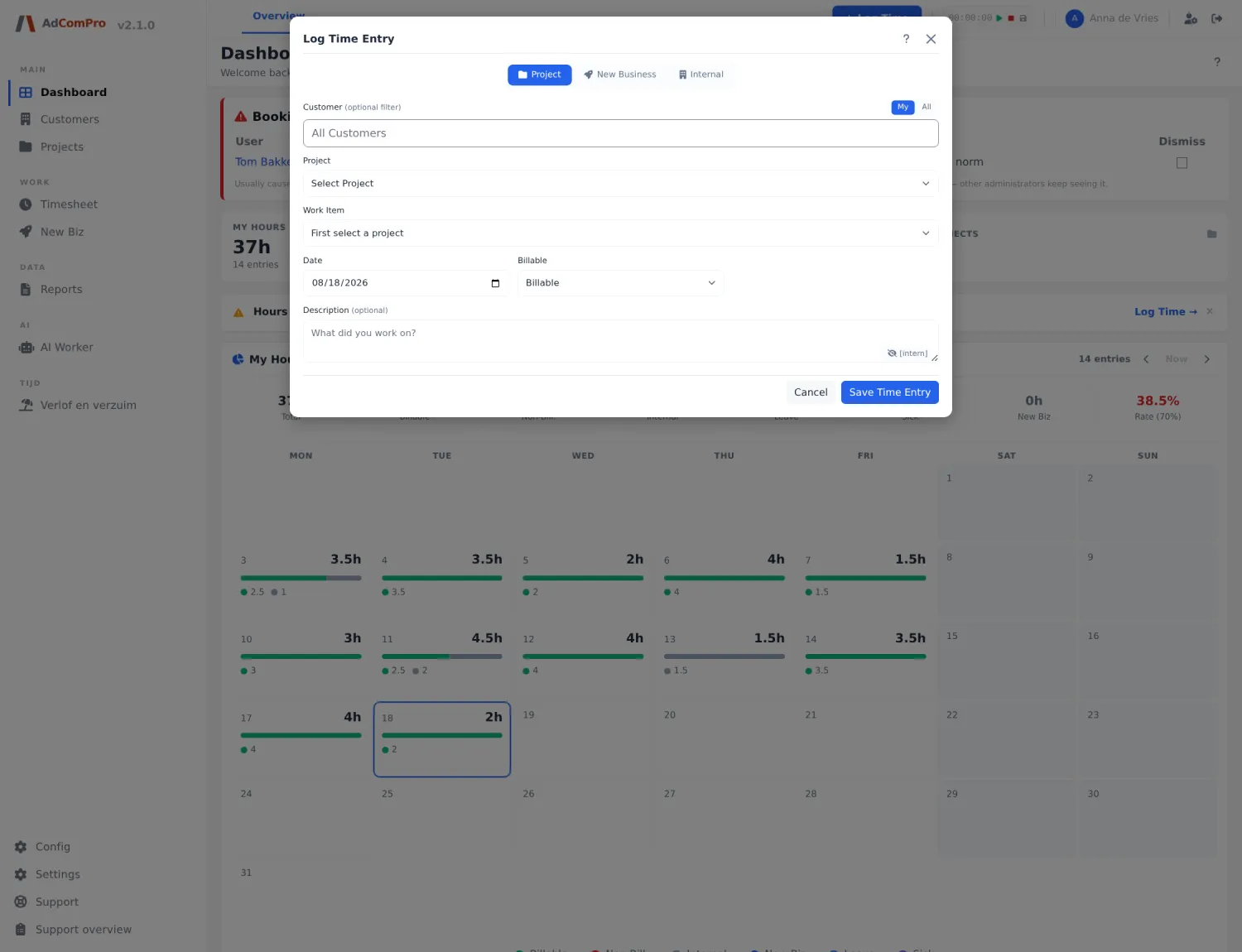
The Project tab
| Field or button | What it does |
|---|---|
| Customer (optional filter) | A search field to limit the project list to one customer. The cross clears the filter. |
| My / All | Sits to the right of the customer field. My shows only projects you are attached to, All all projects you are allowed to see. |
| Project | The project you are booking on. Required. |
| Work Item | The milestone or task within that project. The list only fills after you have chosen a project. |
| Add | The plus next to Project or Work Item: add a milestone or task on the spot without leaving the popup. Handy when you are doing work that is not yet in the structure. |
| Date | The day the work was done. Defaults to today — this is the most common mistake, see the warning below. |
| Billable | Billable or Non-billable. Only billable hours end up on a report by default. |
| Hours / Minutes | The duration. If you used the timer, the elapsed time is already filled in. |
| Description | What you did. This text ends up on the customer’s PDF, so write it so that the customer understands it. |
| Suggestion list | Above the description field: earlier descriptions for the same work item, to save typing. |
| [intern] | Inserts the marker [intern] into the description. Everything after that marker is for internal use and disappears from the customer PDF. |
| Save Time Entry | Saves the booking. The popup stays open, so you can enter the next one straight away. |
| Saved this session | At the bottom: what you have booked in this session, with the total. Click to expand the list. |
| ? | The extended help on logging time, with a section on leave and internal time. |
| Cancel | Closes without saving. |
The date is the pitfall. If you book afterwards, you have to set the date back yourself. If that results in an improbable day total, the application asks for confirmation (“is the date correct?”) and the day appears in Booking quality on your administrator’s dashboard.
The New Business tab
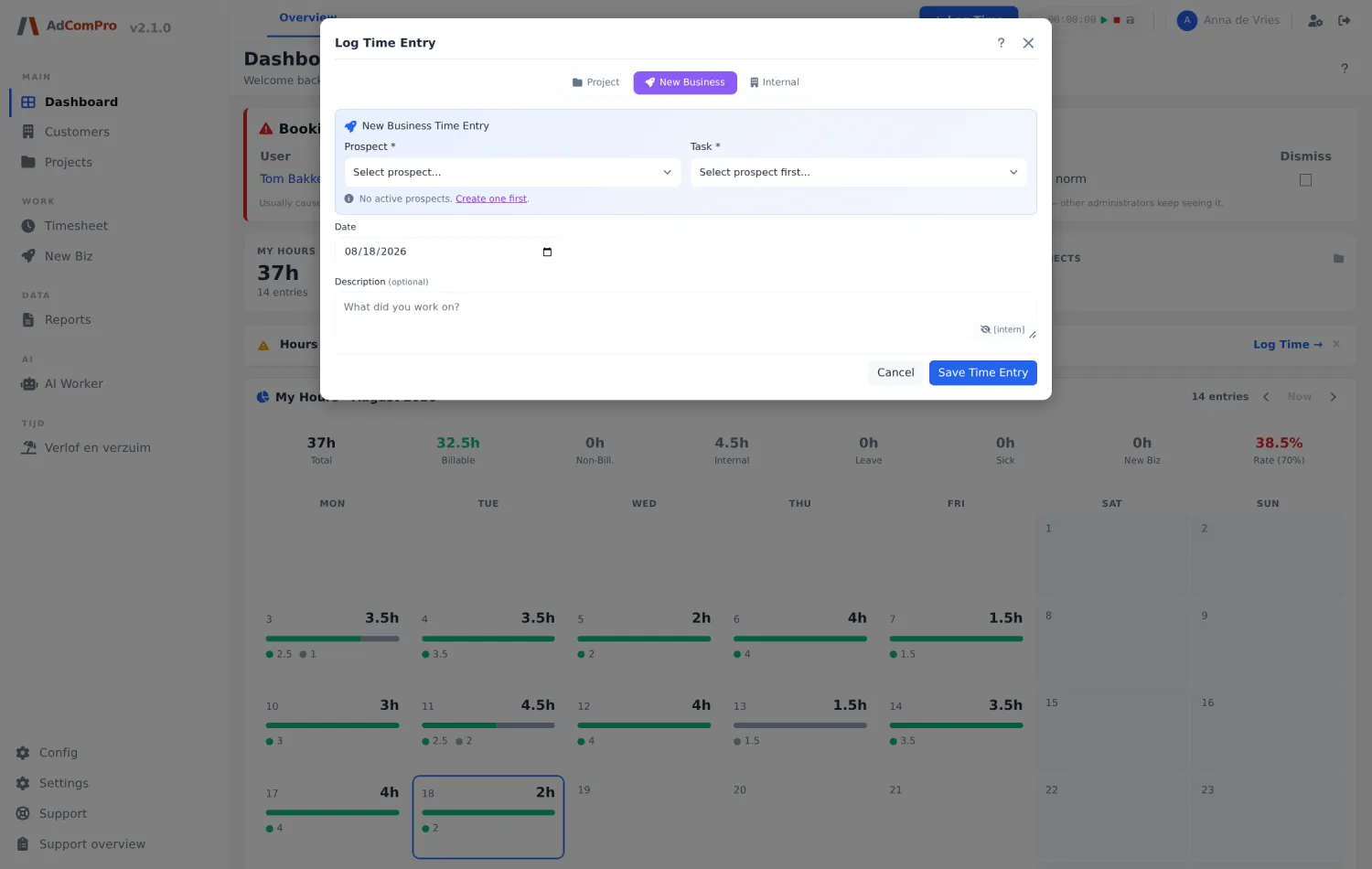
For work that is not a customer yet. You choose a Prospect and a task within it. If there is no prospect yet, Create one first takes you to New Business (chapter 12). These hours are never billable; they count separately as New Biz.
The Internal tab
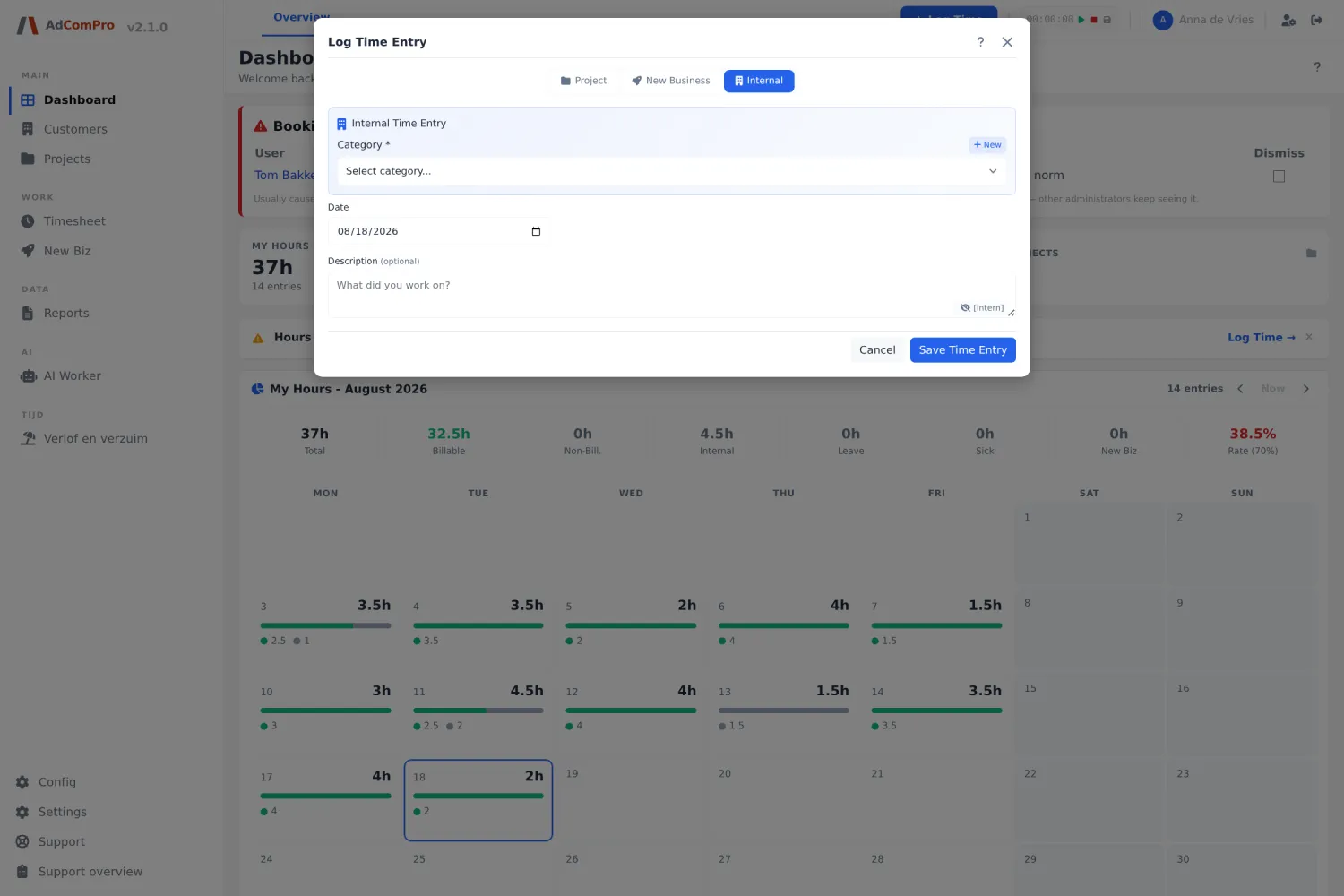
For everything that is not customer work: administration, meetings, training, and also leave and sickness. You choose a Category; with + New you create a new one on the spot (it is immediately available to everyone, so check with your colleagues first). Chapter 6 describes these categories and booking a whole leave period.
The timer
A stopwatch runs along in the top bar. ▶ starts and pauses, ■ resets the counter to zero and the diskette icon opens this popup with the elapsed time already filled in. The timer keeps running while you click around in the application, but not if you close the browser.