A retainer returns every period, and AdComPro creates those periods itself: every month (or quarter) a new working project appears automatically, with the same structure, the same team and the same budget. This chapter explains how the series works, what gets copied, and how to end a series cleanly.
Master and working projects
A series consists of one master and a working project per period. The master is the template that drives the automatic creation: it carries the recurrence settings (base name, frequency, end date) and must stay on status Active. In the project list you recognise it by the crown icon. You never work in the master, but in the working project of the period in question: that is where you book time, that is where you invoice, and changes there touch no other periods.
Starting a series
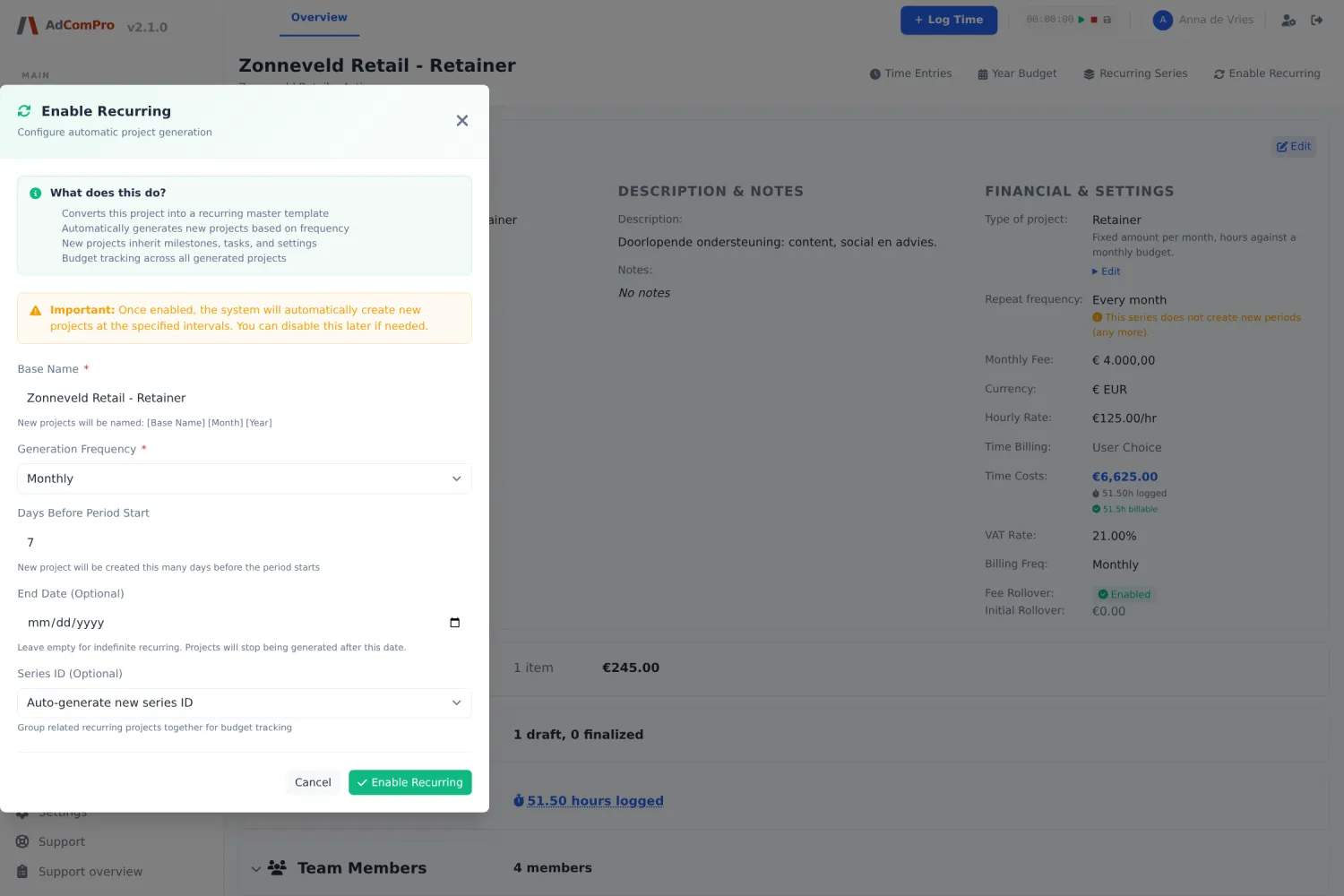
For the retainer project type this happens by itself: you only pick the period when creating it, and the series with its series code is set up on save. For other types you want to recur:
- Create the project with customer, name (month or quarter included) and duration.
- Tick Make this recurring under Recurring Project Settings.
- Fill in the base name without a period (“Website maintenance” becomes “Website maintenance Sep 2026” by itself), the frequency, how many days before the new period should be ready (default seven) and optionally an end date.
- Put team, budget and structure on this project: they travel to the first period.
What travels to a new period
New periods copy their structure from the working project of the previous period, not from the master. A task or team member you add halfway through the month automatically travels to the next month. Only the first period copies from the master, because there is no previous one yet.
| Travels along | Does not travel |
|---|---|
| Milestones and tasks, except completed ones | Completed milestones and tasks |
| Team members and company assignments | Time entries |
| Monthly recurring costs | One-off costs |
| Budget, rates and VAT (always from the master) | Reports and invoices |
There is a handy lever in that: mark work as completed and it disappears from all following periods. A one-off job you added to the retainer in March does not pollute April, provided you tick it off.
Ending a series when a client cancels
This works from any project in the series; you do not need to find the master. In order:
- In the details block under Recurring series, choose the last month that may still be created and click Apply. After that month, no new project appears.
- Finish the running month: generate and finalise the report, so the last invoice is out.
- Then set the projects to Completed (or Cancelled if nothing was booked on them). Do this only after step 2: a cancelled project falls outside report generation.
- Set the customer to Inactive. Do not delete: you would lose the history and the invoices.
Two things that do not stop a series: setting the project to Completed, and setting the customer to Inactive. Those are administrative statuses; the generator does not look at them. Always use the series’ own end date.
Contract changes
If a client’s contract changes halfway (new budget, different terms), end the old series as of the last old month and start a new series with a new first project. The history then keeps showing where the old contract ended and the new one began. If you created monthly projects in a series by hand without a master, the generator does not know what to copy from; in that case open the project that should serve as the template and choose Upgrade to Master template. As soon as a valid master exists, the scheduler automatically creates any missing periods.
If no new project appears
- Is the master on status Active?
- Has the “days before” window been reached yet?
- Is the series’ end date not in the past?
- Does the series have a master at all? (Look for the crown icon, or promote one.)