Hours are the raw material of everything in AdComPro: the budget, the report and the invoice all calculate from what was booked and approved. This chapter covers booking, the approval workflow, internal hours and the checks that catch booking mistakes.
Logging time
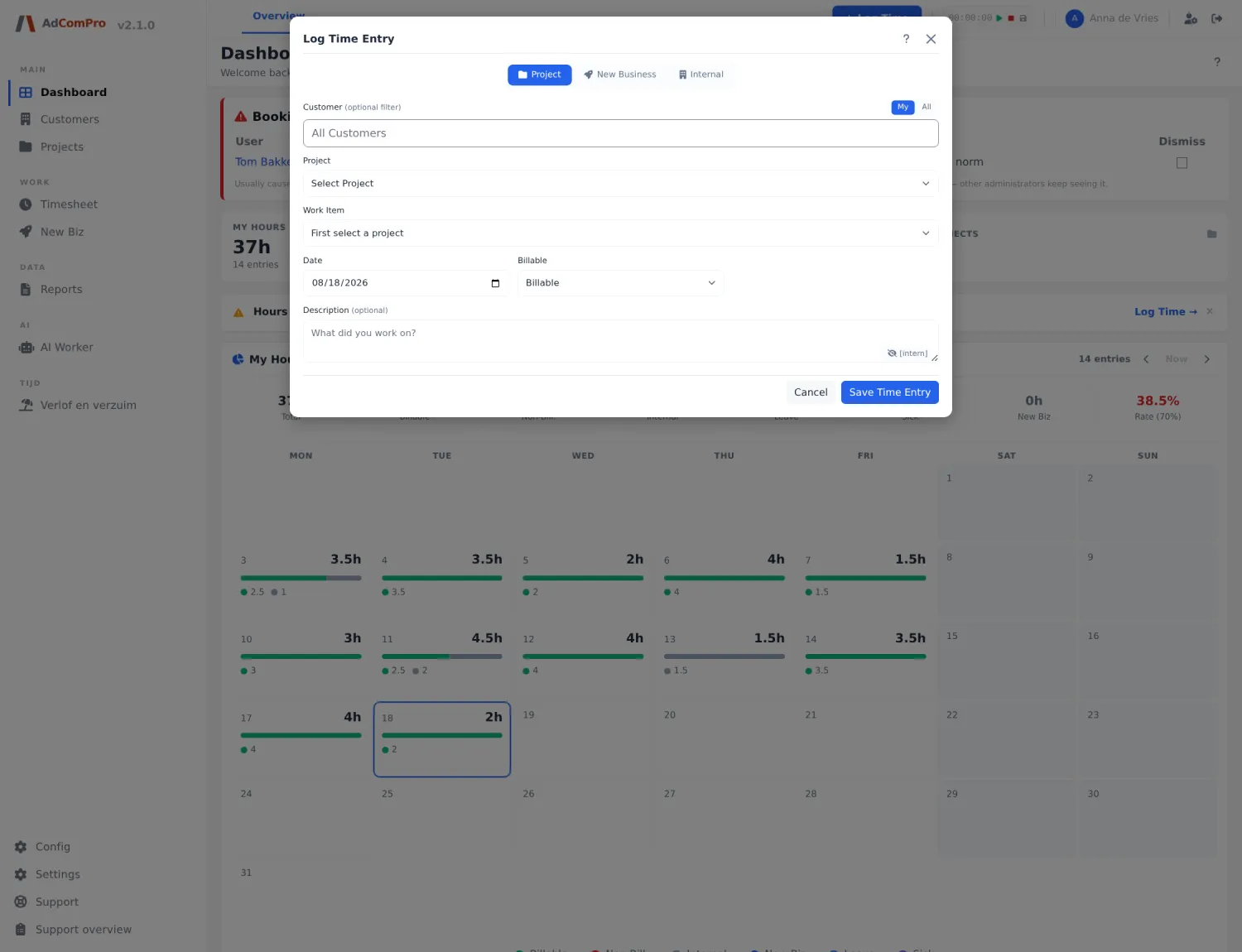
The Log Time button sits in the top bar and works from every page:
- Pick a project, or an internal category if the work has no client project.
- Pick the milestone and the task; hours always hang on a task.
- Fill in date, hours and a short description. That description ends up on the client report, so write it as if the client is reading along.
- Choose billable or non-billable, and save.
The Timesheet page lists all your bookings with filters and totals. Large sets of hours from another system can be imported from a spreadsheet. The dashboard helps you stay complete: past working days without hours turn red there.
The approval workflow
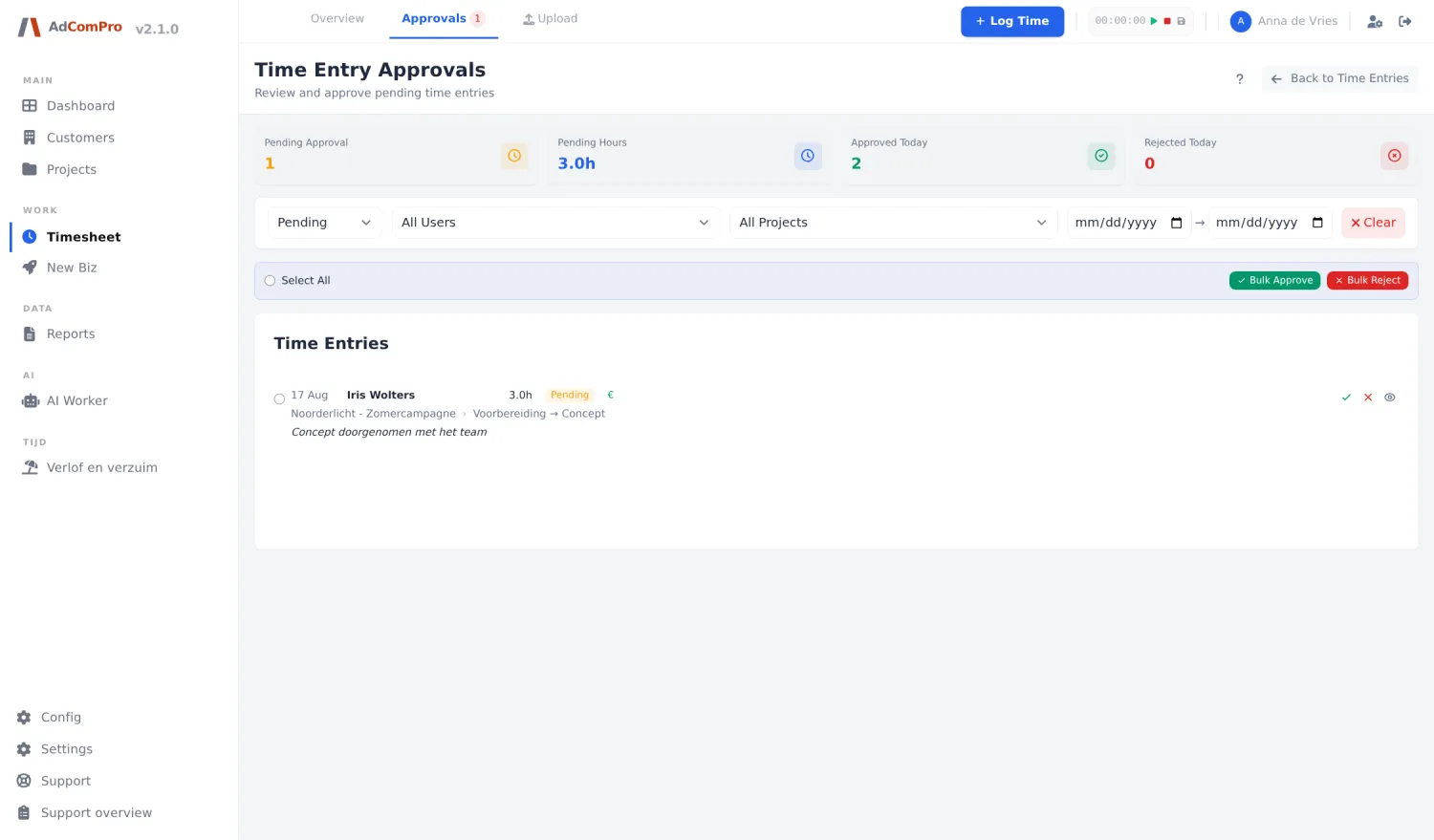
Every booking follows a fixed route: draft → submitted (pending) → approved or rejected. Only approved, billable hours count toward the budget and appear on the report. So approve before you invoice.
- Approving works per line or in bulk: filter by employee or project, select all and approve in one go. Every approved line keeps showing who approved it and when.
- Rejecting is impossible without a reason; the reason is shown with the booking so the owner knows what to correct.
- Auto-approval can be enabled per user: their hours skip the queue and are marked as such. Only for users for whom automatic approval has been agreed.
Internal hours
Meetings, administration, leave and sickness do not belong on a client project. You book those as internal time, directly on your company, per category. Each company manages its own categories; leave and sick are fixed categories that also feed the dashboard counters and the leave overview. Internal bookings go through the same approval workflow as project hours. A multi-day absence is booked in one go over a date range; the hours per day then follow your working schedule, so a short Friday counts as a short Friday.
The checks that catch mistakes
Most booking mistakes are date mistakes: the window was still on yesterday, or on the wrong week. Three safety nets pull those out before they reach an invoice:
- While booking: if someone books more than ten hours on one day, the window first asks whether the date is correct. Leave and sick hours together can never exceed ten hours per day; such a booking is refused.
- Booking quality on the dashboard: administrators and project managers see a signal block with their team’s suspicious days, such as days with more hours than a working day or absence combined with a full working day. One click opens the bookings of exactly that day to correct them.
- The correction popup: if a single day this week holds unrealistically many hours (more than sixteen), the booker gets a blocking popup asking to move the hours to their real dates.
What the dashboard shows you
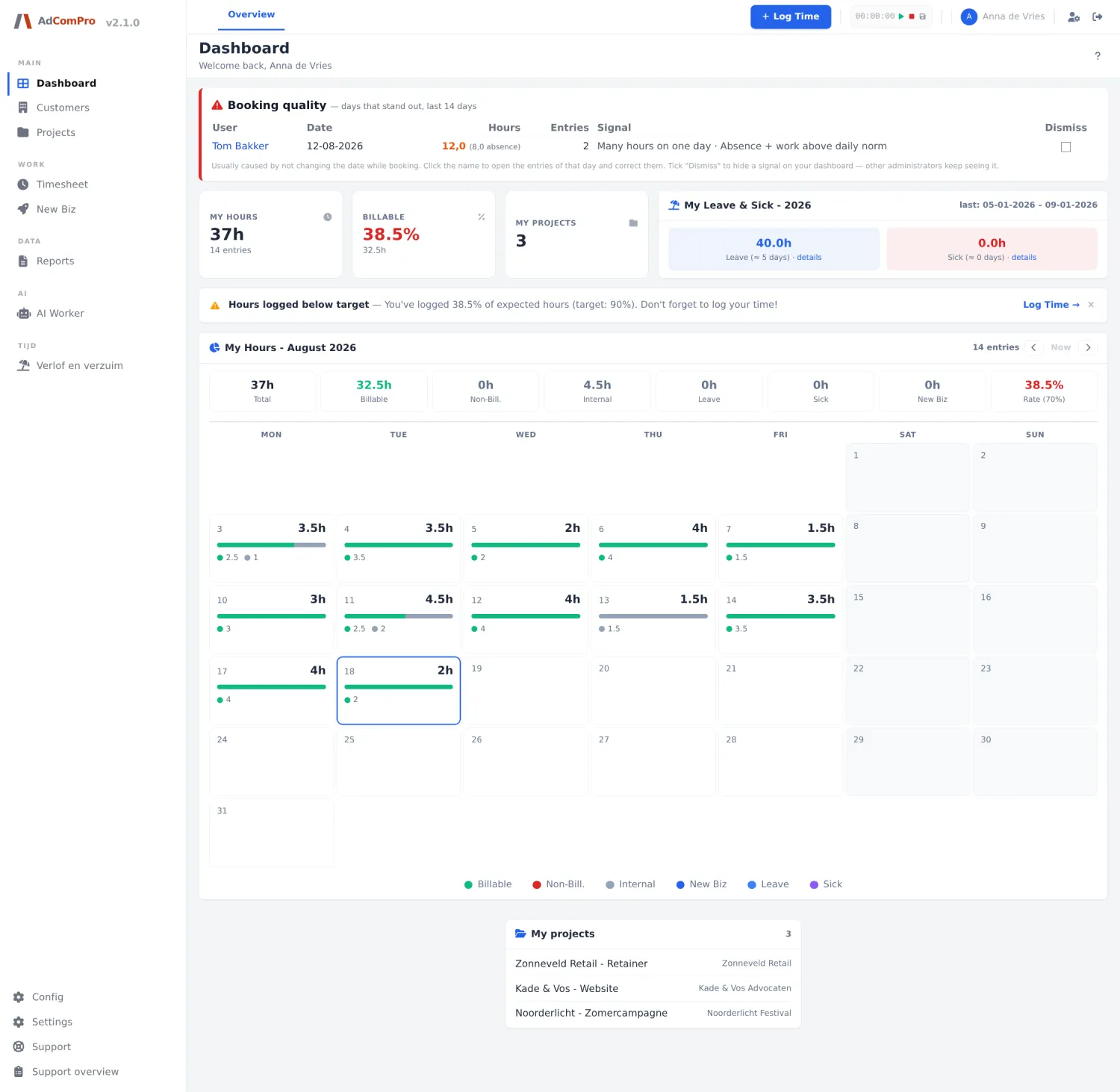
The dashboard sums up your month: total booked hours, billable and non-billable, internal hours, new business hours and your billable percentage (green from seventy percent). The week overview shows per day what was booked, with today highlighted and missed working days in red. One glance tells you whether your administration is up to date; book daily, and Friday afternoon is never a reconstruction of the whole week again.