Path: /reports/<number>/spreadsheet
The edit view works like a spreadsheet: you type directly into the cells and save at the end.
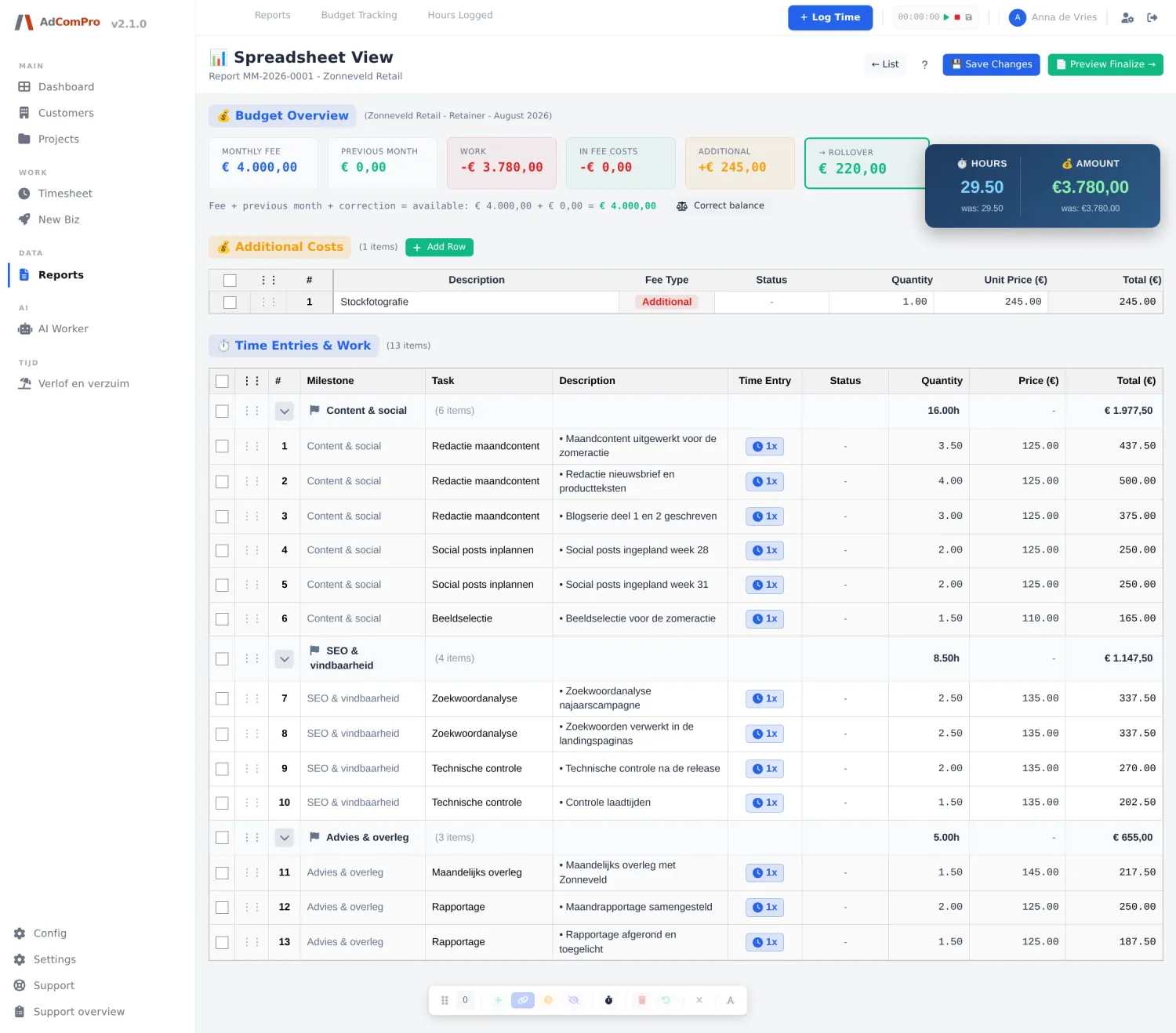
At the top: the budget
| Tile | Meaning |
|---|---|
| Monthly fee | The agreed amount for this period. |
| Previous month | The balance carried over from the previous period. |
| Work | The value of the work on this report, which is deducted from the budget. |
| In fee costs | Costs that fall within the budget. |
| Additional | Costs that are charged separately and therefore not deducted from the budget. |
| → Rollover | What remains or falls short after this period. Negative means more was done than agreed. |
| Line underneath | The sum in words: fee + previous month + correction = available. |
| Correct balance | Books a balance correction on this period (chapter 17). |
Additional Costs
The cost lines of this period, with + Add Row for an extra line. Per line: description, Fee Type (In Fee or Additional), quantity, price and total.
Time Entries & Work
All hours, grouped by milestone. The grey group rows show the subtotal in hours and money. The columns are Milestone, Task, Description, Time Entry, Status, Quantity, Price and Total. The blue badge 1x shows how many bookings a line consists of; clicking it shows those bookings with date, employee and time.
Description, quantity and price can be typed directly. Everything after [intern] disappears from the customer PDF,
so you can leave a note to yourself there.
The toolbar at the bottom
Tick lines; the floating bar counts your selection. The icon on the right switches between text and symbols.

| Button | What it does |
|---|---|
| Insert | Adds an empty line below the selection, for example for work that was not logged as hours. |
| Merge | Merges the selected lines into one line on the PDF. The underlying hours are preserved. |
| Split | Takes a merged line apart again. |
| Defer | Rolls the lines over to the next period: they disappear from this report and return on the next one. |
| Hide | Hides the lines on the customer PDF, but keeps them in the totals. Clicking again makes them visible once more. |
| Round | Rounds the hours of all lines according to your organisation’s convention. |
| Delete | Removes the lines from this report. |
| Restore | Puts deleted lines back. |
| Clear | Clears the selection. |
The page header
| Button | What it does |
|---|---|
| ← List | Back to the report list. |
| ? | The help for this screen. |
| Save Changes | Saves all changes. Do this before you go to the review view. |
| Preview Finalize → | To the review view (chapter 15). |
| Search bar | Searches within the report; ▲ and ▼ jump between the matches, the cross closes the search bar. |