Path: /time-entries · sidebar Timesheet
This is where the logged hours live: by default your own, and if you have the right to see them, those of your colleagues as well.
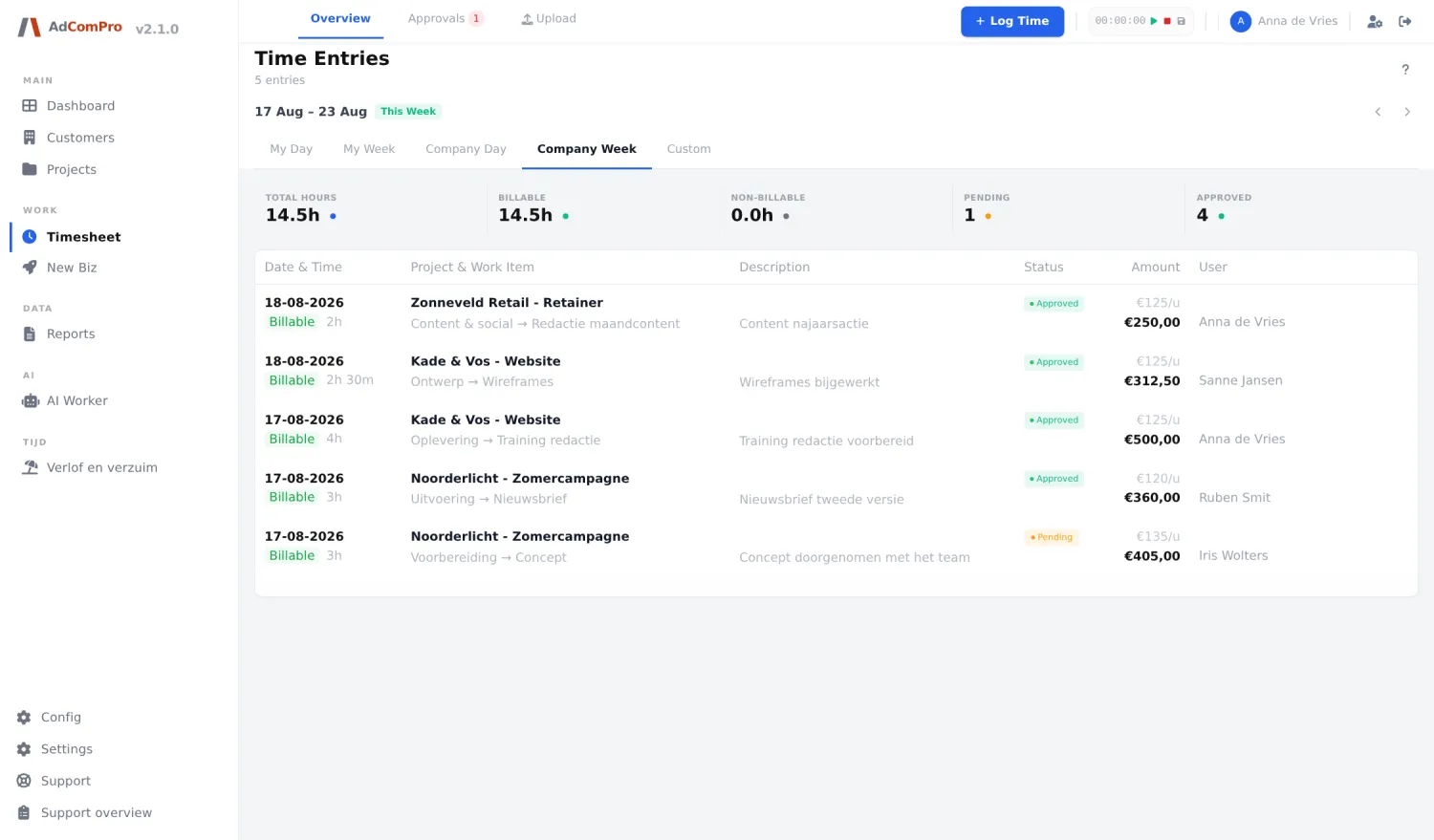
Choosing a period
| Button | What it does |
|---|---|
| My Day | Your entries for a single day. |
| My Week | Your entries for a week. |
| Company Day | All of the company’s entries on a single day. Only visible if you are allowed to see other people’s hours. |
| Company Week | The same, per week. |
| Custom | A period of your own choosing with a start and end date. |
| ‹ › | Top right: one period back or forward. The label next to it (This Week) shows where you are. |
The counters
Total hours, Billable, Non-billable, Pending and Approved. They always calculate over the visible selection, so over the period and the filters combined.
The table
| Column | Content |
|---|---|
| Date & Time | The entry date, with a Billable or Non-billable badge and the duration underneath. |
| Project & Work Item | The project with milestone → task underneath. The project name is a link that filters the list on that project. |
| Description | The description. Everything after [intern] is grey: it does not appear on the customer PDF. |
| Status | Draft, Pending, Approved or Rejected. For a rejected entry the reason is shown in the row. |
| Amount | The hourly rate applied and the amount for this line. |
| User | Who logged the hours. |
What you can do per row
Hover your mouse over a row; four icons appear on the right.
| Icon | What it does |
|---|---|
| Eye (View) | Shows the entire entry, including who created and approved it and when. |
| Layers (Similar entries) | Searches for similar entries — handy to see whether something was entered twice. |
| Pencil (Edit) | Opens the edit popup with date, project, work item, duration, billable and description. |
| Bin (Delete) | Deletes the entry after a confirmation. An invoiced entry cannot be deleted. |
Approved or invoiced? As soon as hours are on a finalised report, they are locked. Corrections are then made via the report (chapter 15), no longer via the timesheet.
Importing hours
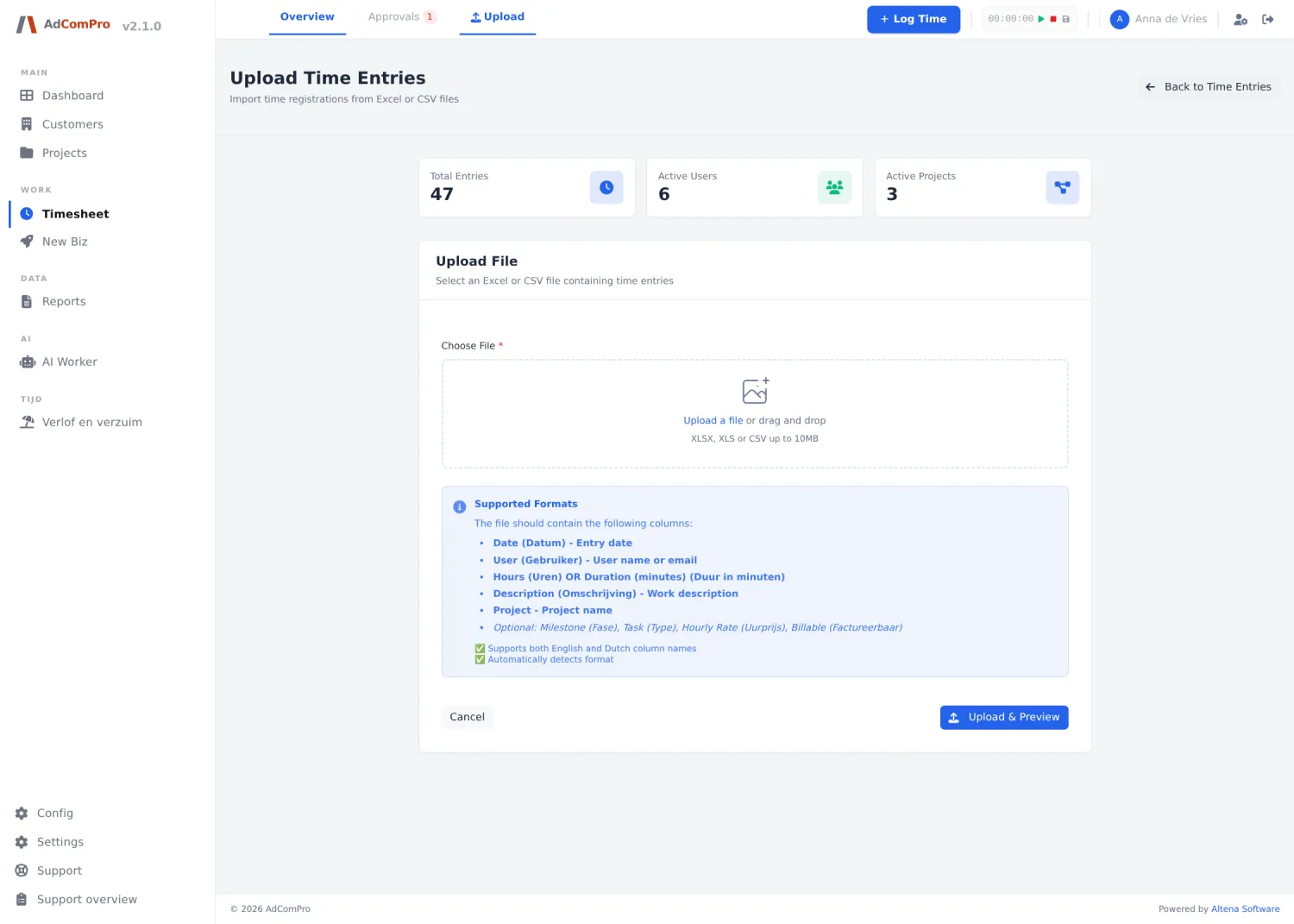
Via Upload in the top menu you import hours from a file. You choose the file, map the columns to fields, and first get a review overview of what would happen. Only after that is anything written, and a started import can still be rolled back with Cancel.