The customer base is the rack that projects, reports and invoices hang on. This chapter covers customers and contacts, sharing a customer with another organisation, and the new business pipeline that turns a prospect into a customer.
Customers and contacts
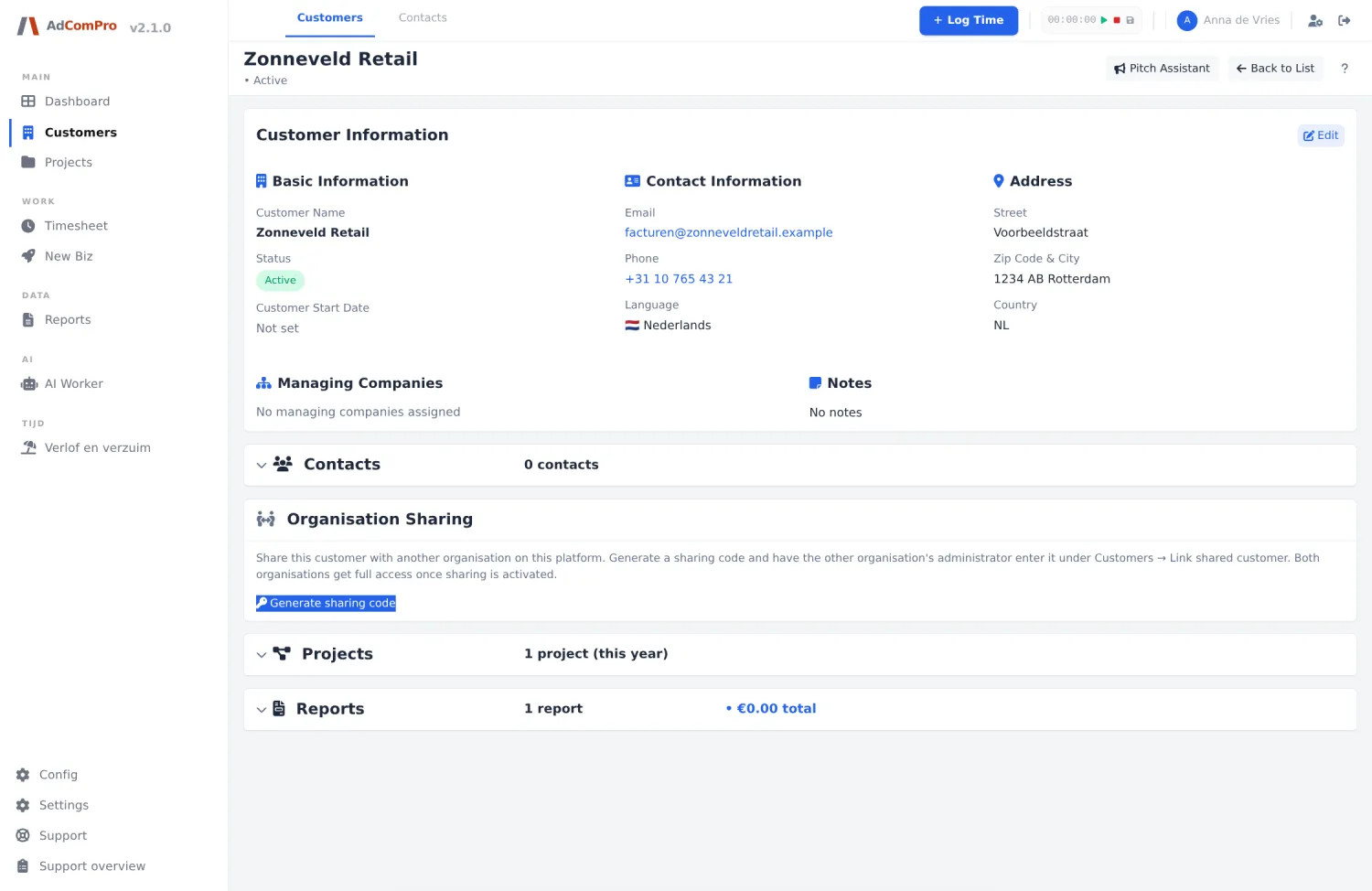
Under Customers sits the customer list with search, filters, bulk editing and export. The customer page is the file of that relationship: details, projects, budgets and an activity log that records per field who changed what and when (“email changed from x to y”, not “record updated”).
- Contacts are managed per customer, with one contact marked as primary. A contact can belong to several organisations at once.
- Active or inactive: a departing customer is set to inactive, not deleted. That keeps the history and the invoices. The full closing procedure is in chapter 5.
Sharing a customer with another organisation
Working with a partner agency on the same customer? You can share that customer. Both organisations then see the same customer, projects and hours, can book on them and see who booked what. Everything created under a shared customer stays owned by the organisation that owns the customer.
- The owner creates a share code on the customer page: sixteen characters, valid for a limited time.
- The administrator of the other organisation redeems the code under Customers → Link shared customer.
- Revoking works from both sides, for an unused code as well as a running link. The same window shows what you share and what is shared with you.
The new business pipeline
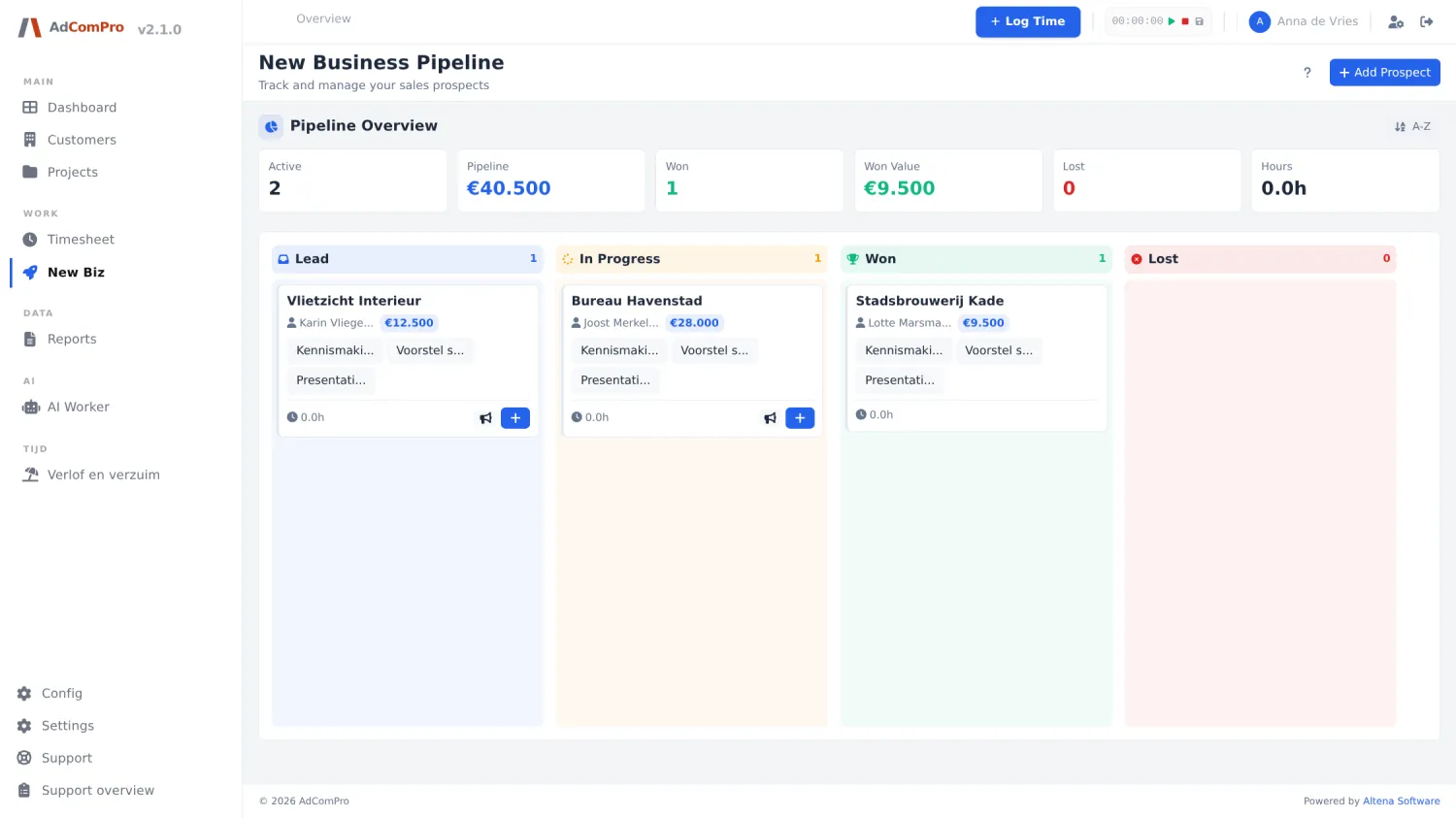
Under New Biz you follow potential clients on a Kanban board with four columns: Lead → In Progress → Won or Lost. The statistics at the top show the pipeline at a glance: active prospects, total pipeline value, won and lost, and the hours already invested.
- Adding a prospect: a company name is enough to start; fill in the expected value (it feeds the pipeline value) and the source, so you learn which channel brings your best leads. Address details you enter now travel along to the customer later.
- Booking time on a prospect: via the clock icon on the card, with a task category such as Meeting or Proposal. That way you know your real acquisition cost per client. These hours are non-billable and separate from project hours.
- Won: dragging a card to Won opens the conversion window: check the details and a customer is created automatically, with a link on the card.
- Lost: dragging a card to Lost asks for a reason (budget, timing, competition). Those reasons are kept; you learn more from them than from the won deals.
Do not leave prospects in Lead forever: move them on or mark them lost, or your pipeline value stops meaning anything.
Pitch assistant
For a prospect you want to win, the AI can prepare a pitch: web research into the company, an opportunity analysis, a pitch document and a presentation outline. You find it on the prospect card. Its AI costs are visible in the AI cost overview (see chapter 11), so acquisition stays measurable here too.