Path: /dashboard
The dashboard is your start screen. From top to bottom it shows: signals that need attention, your own figures for this month, a month calendar of your hours, and your projects.
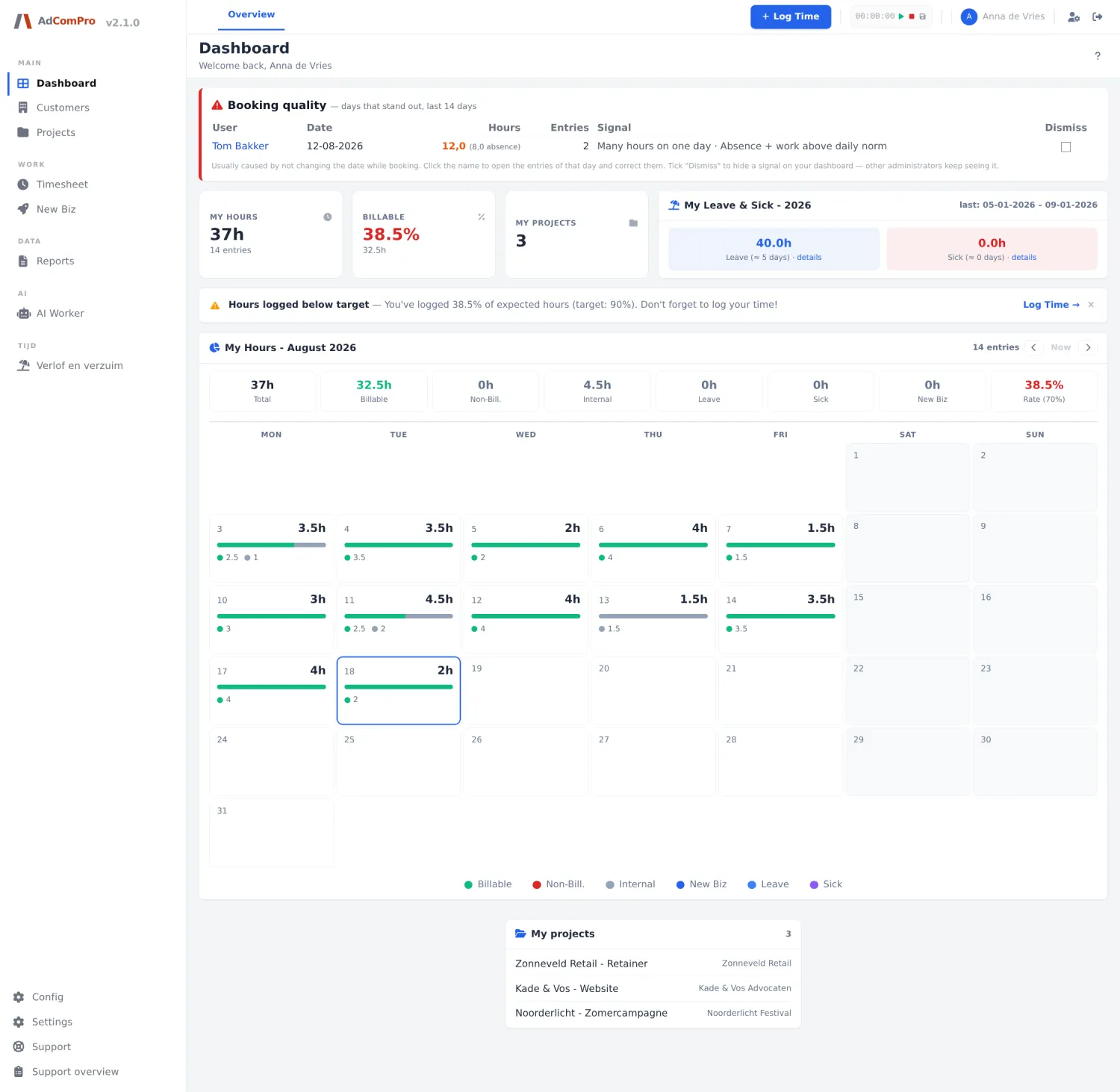
The blocks on the screen
| Block | What it shows and what you can do with it |
|---|---|
| Support answered… | Appears when support has answered your ticket. Review → opens the ticket, where you confirm it is resolved or reopen it. |
| Booking quality | Only for administrator and project manager: days that stand out, such as more than ten hours on one day or leave plus work. Click the name to open and correct that day’s bookings. Tick Dismiss to remove a signal from your dashboard; other administrators keep seeing it. |
| My hours | Your hours logged this month, with the number of bookings below. |
| Billable | The share of those that is billable, as a percentage. The target is shown after Rate in the month block and is set per company (chapter 21). |
| My projects | The number of projects you are attached to; the tile links to the project list. |
| My Leave & Sick | Your leave and sickness this year, in hours and days. details opens the breakdown. |
| Warning lines | For example Hours logged below target or No hours logged yesterday. Log Time → goes to your timesheet; the cross on the right hides the message. |
| My Hours – <month> | The month calendar, described below. |
| My projects (list) | Your projects with customer name; click one to go to the project page. |
| Ask the assistant → | To the AI Worker (chapter 25). |
The month calendar
Above the calendar are eight counters: Total, Billable, Non-Bill., Internal, Leave, Sick, New Biz and Rate with your target in brackets. In the calendar every day has its day total, a small bar with the ratio and coloured dots per type. Days on which you do not work according to your working hours have a darker background; today has a coloured border.
| Button | What it does |
|---|---|
| ‹ | One month back. |
| Now | Back to the current month. The button is grey when you are already there. |
| › | One month forward; you cannot go further than next month. |
| Clicking a day | Opens the day breakdown (below). |
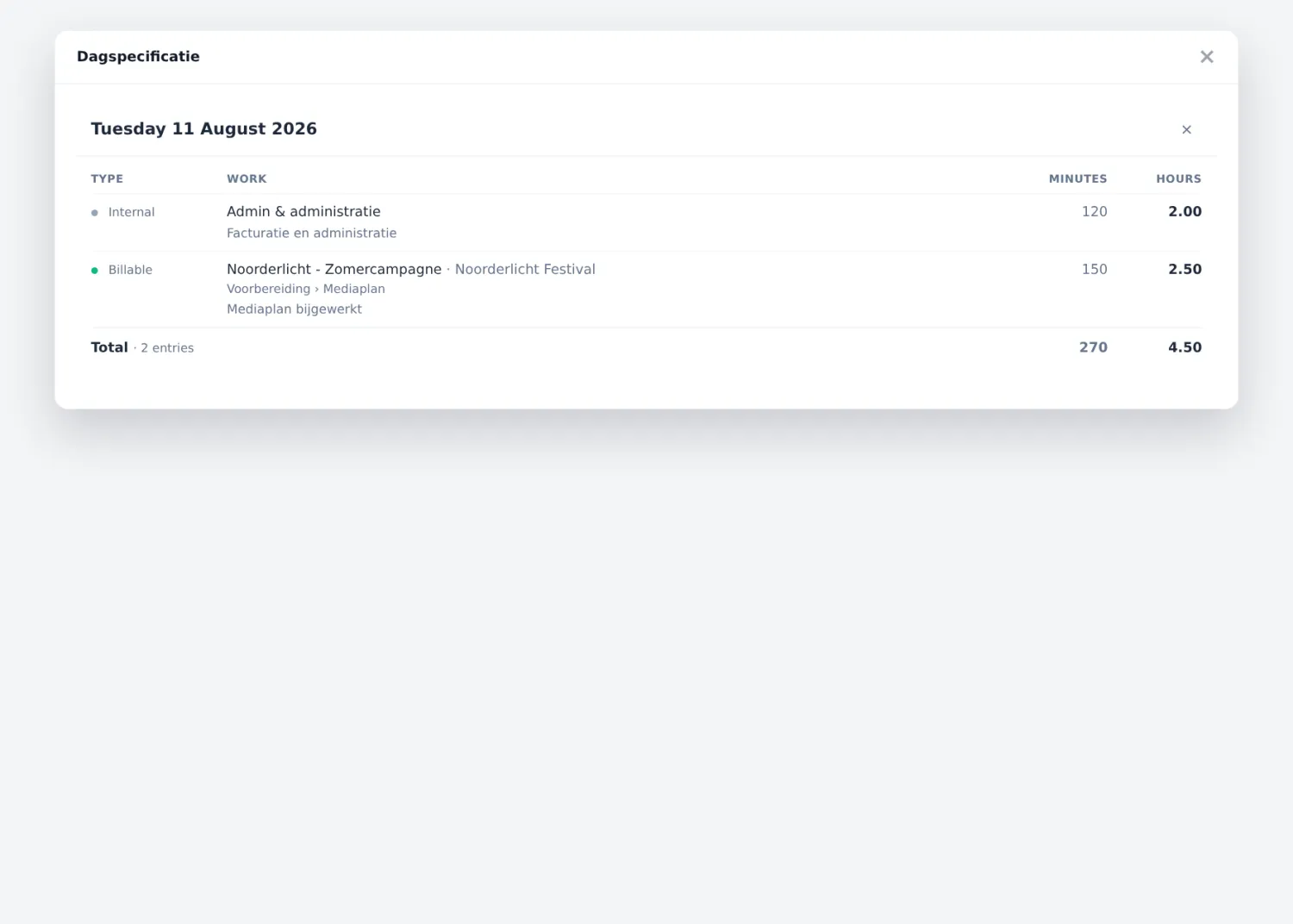
The popup groups the bookings by project and shows per line the work item, the description, the minutes and the hours. At the bottom is the day total. On a busy day you scroll within the popup; the header and the total stay in place.
Why two columns? You book in minutes but report in hours. By showing both, you never have to do the maths yourself when you want to check a booking.